Showing posts with label Epson. Show all posts
Showing posts with label Epson. Show all posts
Friday, October 10, 2014
Epson T60 Blink Reset

This time the we will try to share about how to reset Epson T60 blink. How resetter epson T60 resetter way is similar to the previous reply.
Epson Printer, cartridge board and its protection by using a sort of counter which serves to limit usage. And if the counter has reached the maximum limit, then Epson printers will be blinking or flashing power led will continuously alternately between red and green.
To overcome this blinking Epson printer T60 resetter software can use the Epson Adjustment Program or function to reset the counter of Epson T60 printers.
How to reset Epson T60 blink:
- The first step of course must already installed printer driver. To Download its driver click download here.
- Download software resetter Epson T60. Epson T60 Resetter named Software, you can download it here.
- Date of the computer does not need to be changed as the previous resetter.
- Run program resetter Epson T60 directly with double click on "AdjProgcracked .exe".
- Then follow the picture below:


- When finished turn off the printer and then turn it on again. The Printer will flame with green lights. Epson Stylus printer T60 means that blink was already ready to be used again.
Good Luck :)

Sunday, October 5, 2014
Epson T13 Blink Reset
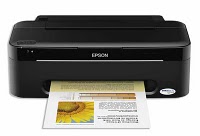
Epson T13 printers including the type of printer is very economical also reliable and powerful in its class, in addition, this type also include class types of printers are the most subtle and not make noise when printing activity in the room and the office. Well after we buy and own a printing press called the printer is certainly and surely will be used as fully as possible to print images on various kinds of media according to the needs and capabilities of each of us if its a personal nature, but different again later if it is used by your story who had a printing business in the clear would be used to print the maximum again.
How to Reset Epson Stylus T13, follow these steps:
1. The first step of course epson T13 printer driver must be installed. To Download the driver in the Epson driver
2. Download software resetter Epson T13 first. Software Resetter Epson T13 named, you can download here
3. Date computer does not need to be changed as previously resetter.
4. IMPORTANT! Turn off your Antivirus, because resetter T13 is detected as virus by antivirus software.
5. Run the program resetter Epson T13 with a double click on the "AdjProg.exe".
6. Then follow the steps at the following picture:
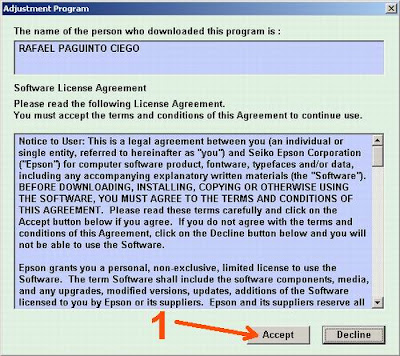
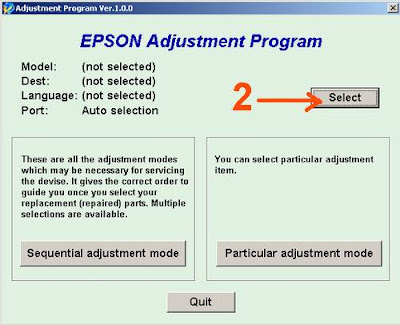
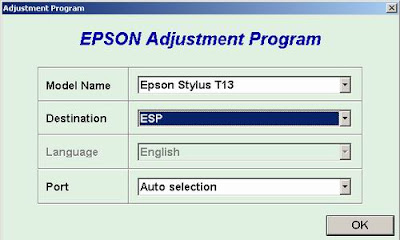
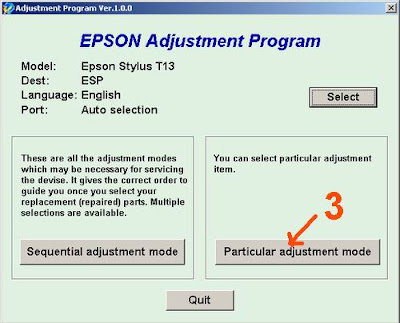
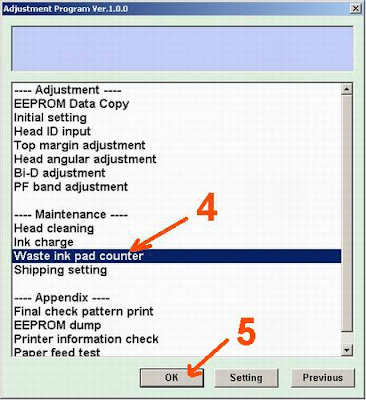
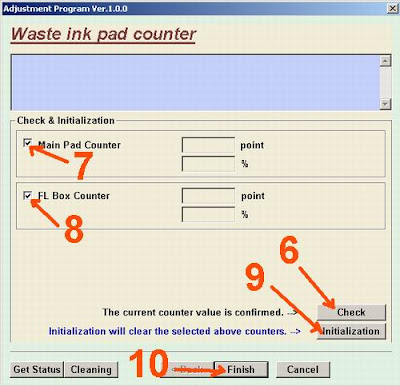
Check: used tocountercheckthemaximum7800points,youcansee it in themain pad counter.Ifmoreor close to7800pointsmeans the printerneeds to bereset "
"Initialization:used to resetorreset counterprinter"
6.When finishedturn the printer offthenon again.The printerwillflamewitha greenlight.EpsonStylusT13printermeansthatblinkhad beenready for useagain.
Hopefullythis articlehelpfultoyou
Good luck
"Initialization:used to resetorreset counterprinter"
6.When finishedturn the printer offthenon again.The printerwillflamewitha greenlight.EpsonStylusT13printermeansthatblinkhad beenready for useagain.
Hopefullythis articlehelpfultoyou
Good luck
Wednesday, October 1, 2014
Self Test Print for Epson Printers

Heres how the self test print for Epson printers. Self test print test is done without using a computer, so for the purposes of service printers, can be done without using a computer without the need to install the drivers, of course.
How to self test print for Epson printer:
1. For Epson type C series: C41 C42 C43, C45, C58, C61, C62, C63, C65, C67, C79, C85, C90, C87, C86, etc.
For Epson R series: R210, R230, R230X, R270, etc.
For Epson T-type series: T11, T20, T13, T13X, etc.
For Epson type L series: L100, L110 L200 L210, L300, L310, etc.
Heres How:
- Make sure the printer in die/off
- Press the resume should not be removed
- Press the power button (1 x then off) while pressing the resume
- Fixed press resume 4-5 seconds, then off
2. For Epson CX type series: CX Series: CX 4300, CX 3600, CX3700, CX 5100, CX 4900, CX 5900, etc.
Heres How:
- Press the power button do not removed
- Then press the ink/ink should not be removed
- Wait until the power indicator light flashes 1 x
- Then disconnect both the power button and ink simultaneously.
I hope these tips are helpful.
Good Luck.
Subscribe to:
Posts (Atom)