Showing posts with label Reset. Show all posts
Showing posts with label Reset. Show all posts
Monday, November 17, 2014
Instagram reset password
To reset your password:
- Tap Forgot your password? on the login screen.
- Tap Username or Email and enter your username or the email address you used to create your account.
- Tap Search in the top-right corner.
- Tap Reset using Facebook.
- If you aren't already logged into Facebook, you'll be prompted to.
Above is Instagram reset password guide

Friday, October 10, 2014
Epson T60 Blink Reset

This time the we will try to share about how to reset Epson T60 blink. How resetter epson T60 resetter way is similar to the previous reply.
Epson Printer, cartridge board and its protection by using a sort of counter which serves to limit usage. And if the counter has reached the maximum limit, then Epson printers will be blinking or flashing power led will continuously alternately between red and green.
To overcome this blinking Epson printer T60 resetter software can use the Epson Adjustment Program or function to reset the counter of Epson T60 printers.
How to reset Epson T60 blink:
- The first step of course must already installed printer driver. To Download its driver click download here.
- Download software resetter Epson T60. Epson T60 Resetter named Software, you can download it here.
- Date of the computer does not need to be changed as the previous resetter.
- Run program resetter Epson T60 directly with double click on "AdjProgcracked .exe".
- Then follow the picture below:


- When finished turn off the printer and then turn it on again. The Printer will flame with green lights. Epson Stylus printer T60 means that blink was already ready to be used again.
Good Luck :)
How to Factory Reset Sony Xperia Z2 Tablet
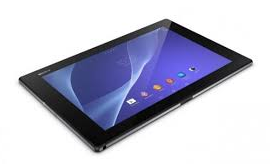 We have our own reasons why we factory reset our device. Maybe we want to delete all the files and restore the device to its original state. It could also be the device may be malfunctioning or so slow and it needs to be reset.
Restoring the default settings or factory reset your Sony Xperia Z2 tablet will delete all your files. It is recommended to backup your important files on your computer before attempting to reset your device.
There are two ways on how to reset your Sony Xperia Z2 tablet. One is to erase everything, wiping your files and restoring the default settings. The other one is to reset the device without deleting your personal data.
How To Reset Your Sony Xperia Z2 (Erasing All Your Files):
- On your Home Lcd, tap Apps icon.
- Go to Settings, and select Backup & reset.
- Tap on Factory data reset.
- Then Reset tablet.
- Confirm by tapping Erase everything. You just need to wait while your phone deleting your files and restoring your settings to default.
How To Reset Without Erasing Your Personal Data:
- On your Home Lcd, tap Apps icon.
- Go to Settings, and select Backup & reset.
- Tap on Settings reset.
- Then Reset tablet.
- Confirm by tapping Reset settings.
- Wait while your phone restoring your settings.
Warning: To avoid permanent damage to your device, do not restart your device while a reset procedure is underway.
Password BIOS Reset

There may be many ways that we can use to reset the BIOS password, there are very simple way to reset the BIOS password you can try without the need to disassemble the laptop:
Step 1 When the computer is booting press the F1, F2 or Del to enter BIOS Setup
Step 2 You will be prompted to enter a password, just enter any password try as much as 3x. If you have entered the wrong password then the computer will display the 5 to 8 character code, as shown in the image below.
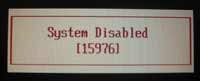
Step 3 Write down the code and click here to download the password reset software
Step 4 Run the program youve downloaded, and then type the code that you noted earlier, for more details see instructions below image
Step 4 Run the program youve downloaded, and then type the code that you noted earlier, for more details see instructions below image
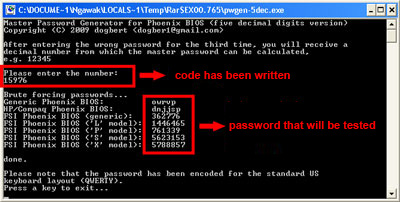
Step 5 Try one of the codes that have been obtained from earlier programs on the laptop that BIOS password has been locked.
Step 6 If the steps above do not work on your laptop, you may need to disassemble the laptop and unplug the BIOS battery for BIOS password reset manually.
Good luck and I hope this short tutorial useful
NB: reset the BIOS Program above applies only to "Phoenix BIOS", to download any other BIOS reset software click here
Step 6 If the steps above do not work on your laptop, you may need to disassemble the laptop and unplug the BIOS battery for BIOS password reset manually.
Good luck and I hope this short tutorial useful
NB: reset the BIOS Program above applies only to "Phoenix BIOS", to download any other BIOS reset software click here
Sunday, October 5, 2014
Epson T13 Blink Reset
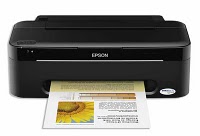
Epson T13 printers including the type of printer is very economical also reliable and powerful in its class, in addition, this type also include class types of printers are the most subtle and not make noise when printing activity in the room and the office. Well after we buy and own a printing press called the printer is certainly and surely will be used as fully as possible to print images on various kinds of media according to the needs and capabilities of each of us if its a personal nature, but different again later if it is used by your story who had a printing business in the clear would be used to print the maximum again.
How to Reset Epson Stylus T13, follow these steps:
1. The first step of course epson T13 printer driver must be installed. To Download the driver in the Epson driver
2. Download software resetter Epson T13 first. Software Resetter Epson T13 named, you can download here
3. Date computer does not need to be changed as previously resetter.
4. IMPORTANT! Turn off your Antivirus, because resetter T13 is detected as virus by antivirus software.
5. Run the program resetter Epson T13 with a double click on the "AdjProg.exe".
6. Then follow the steps at the following picture:
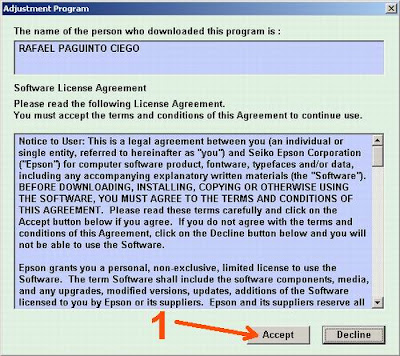
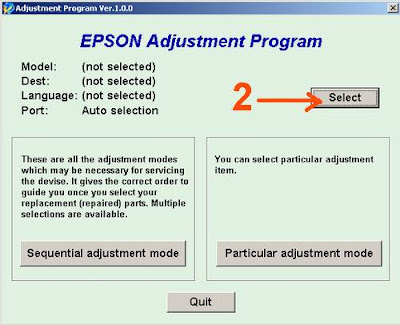
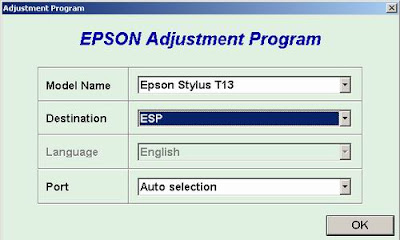
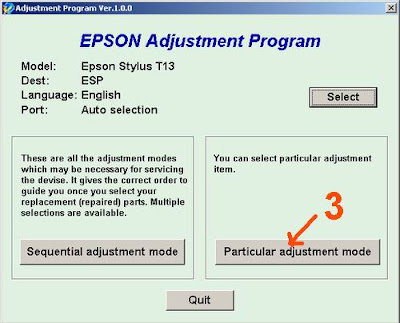
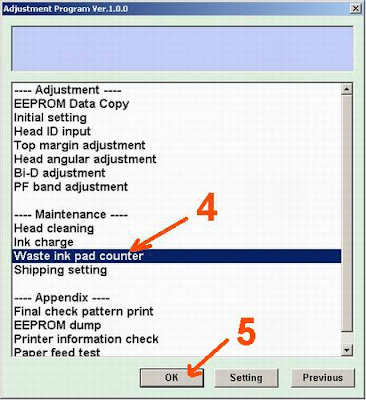
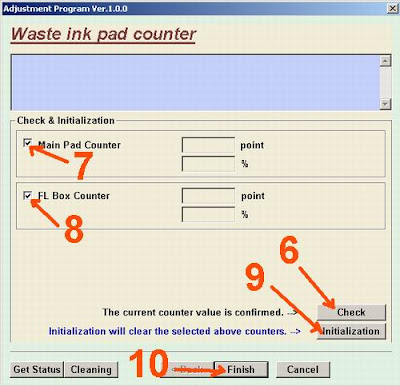
Check: used tocountercheckthemaximum7800points,youcansee it in themain pad counter.Ifmoreor close to7800pointsmeans the printerneeds to bereset "
"Initialization:used to resetorreset counterprinter"
6.When finishedturn the printer offthenon again.The printerwillflamewitha greenlight.EpsonStylusT13printermeansthatblinkhad beenready for useagain.
Hopefullythis articlehelpfultoyou
Good luck
"Initialization:used to resetorreset counterprinter"
6.When finishedturn the printer offthenon again.The printerwillflamewitha greenlight.EpsonStylusT13printermeansthatblinkhad beenready for useagain.
Hopefullythis articlehelpfultoyou
Good luck
Thursday, October 2, 2014
How to Factory Reset Hard Reset Samsung Galaxy Express
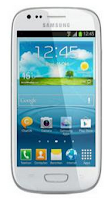
The steps below are the instructions on how to factory reset your Samsung Galaxy Express:
Step 1. On your HomeLcd, tap on MENU icon.
Step 2. Select "Settings", then scroll down and tap "Backup and reset" option.
Step 3. Then tap on “Factory Data Reset”.
Step 4. Read warning carefully before tapping the “Reset Device”.
Step 5. If you want to proceed in resetting your device, tap on “Delete All” to confirm the Reset.
Now, you just need to wait while your device is resetting. It should reboot itself and you will have a new start on your Samsung Galaxy Express.
Now, you just need to wait while your device is resetting. It should reboot itself and you will have a new start on your Samsung Galaxy Express.
You may also use the shortcut method using the code: Enter *2767*3855# on your device.
Hard Reset:
- Press and hold the Power button, Volume Up and the Home Key at the same time.
- Hold these buttons until your phone vibrates, then release the Power button.
- Hold the Volume Up and the Home Key until you see the Android icon.
- Then choose the Factory Reset option.
Wednesday, October 1, 2014
How to Factory Reset Hard Reset Samsung Galaxy Young
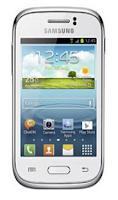
Restoring the default settings or factory reset your Samsung Galaxy Young will delete all your existing files. It is recommended to backup your important files on your computer before attempting to reset your device.
The steps below are the instructions on how to factory reset your Samsung Galaxy Young:
Step 1. On your HomeLcd, tap on MENU icon.
Step 2. Select "Settings", then scroll down and tap "Backup and reset" option.
Step 3. Then tap on “Factory Data Reset”.
Step 4. Read warning carefully before tapping the “Reset Device”.
Step 5. If you want to proceed in resetting your device, tap on “Erase everything” to confirm the Reset.
Now, you just need to wait while your device is resetting. It should reboot itself and you will have a new start on your Samsung Galaxy S3.
You may also use the shortcut method using the code: Enter *2767*3855# on your device.
Hard Reset:
1. Turn off your device.
2. Then press and hold Volume Down + Home Button + Power On.
3. Wait for a few seconds until the Factory reset menu appears.
4. Select "wipe data/factory reset" by using the Volume Down button.
Tuesday, September 30, 2014
How to Factory Reset Hard Reset LG Optimus L3
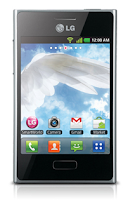
Restoring the default settings or factory reset your LG Optimus L3 will delete all your existing files. It is recommended to backup your important files on your computer before attempting to reset your device.
The steps below are the instructions on how to factory reset your LG Optimus L3:
Step 1. On your HomeLcd, tap on MENU icon.
Step 2. Select Settings, then select Privacy option.
Step 3. Then tap on Factory Data Reset.
Step 4. Read warning carefully before tapping the Reset phone.
Step 5. If you want to proceed in resetting your device, tap on Erase Everything to confirm the Factory Reset.
Now, you just need to wait while your device is resetting. It should reboot itself and you will have a new start on your LG Optimus L3.
If your LG Optimus L3 is unresponsive, then you may need to do the Hard Reset.
- Press and hold the Power button, Volume Down and the Home Key at the same time.
- Hold these buttons until you see the LG logo, then release the Power button.
- Hold the Volume Down and the Home Key until you see the Hard Reset Lcd.
- Wait for a few minutes while your phone performing the hard reset. It will turn on in a while..
How to Factory Reset Sony Xperia E
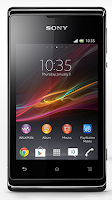
Follow these steps on how to reset the Sony Xperia E:
- From your Home Lcd, tap the Menu icon.
- Tap Settings, then select Backup & Reset.
- Tap Factory data reset.
- Tap Reset phone.
- Then you need to confirm by tapping Erase everything.
Friday, September 26, 2014
How to Factory Reset Hard Reset HTC Desire U
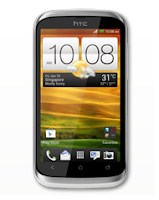
Resetting HTC Desire U on Settings:
- Slide the Notifications panel open, and then tap the Gear Icon or Settings.
- Select Backup & reset.
- Tap Reset phone.
- If you want to delete all your files, then tap Erase all data.
- Then tap OK to confirm.
These steps is also helpful when your HTC Desire U is unresponsive or frozen and theres no way to access the settings.
- First, press and hold the Volume Down button, and then do the same way on the Power button.
- Hold the two buttons until the three Android images appear on the Lcd.
- Release the button when the three Android images appear and press Volume Down.
- Tap on Factory Reset, and then press the Power Button to confirm.
Subscribe to:
Posts (Atom)