Showing posts with label upgrade. Show all posts
Showing posts with label upgrade. Show all posts
Wednesday, October 8, 2014
How to Upgrade With the Latest Software on Samsung Galaxy Young
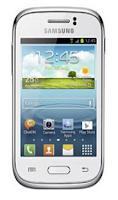
Upgrading with Samsung Kies
1. First launch Samsung Kies.
2. Then connect your phone to the computer using the USB cable that came with it.
3. Now Samsung Kies will automatically recognizes your device and a dialogue box
appears showing the available updates, if any.
4. Click the update button in the dialogue box to start upgrad ting to te latest software.
While youre upgrading the device, you shouldnt turn off the computer or disconnect
te USB cable and dont connect other media devices to the computer as it may interfere
the upgrading process.
Upgrading over-the-air
1. Go the Applications Lcd and then tap Settings.
2. Then go to About device.
3. Select Software Update then hit on Update.

Monday, September 8, 2014
How to Upgrade Android OS Gingerbread to Ice Cream Sandwich

How is that how android Gingerbread OS Upgrade Ice Cream Sandwich??? Her answer of course is in wwwdotcom, let us refer, How to Upgrade Android OS Gingerbread to Ice Cream Sandwich | Android Gingerbread version you have? But, you want to feel how the hell version of Ice Cream Sandwich? Do not worry, there Mr.wwwdotcom here, you do not need to buy the "Robot Ijo" new version of Ice Cream Sandwich. Today, the BM will share How to Upgrade Android OS Gingerbread to Ice Cream Sandwich. As we also know how the performance of Gingerbread and Ice Cream Sandwich. Okay, just the way the Android Gingerbread OS upgrade to Ice Cream Sandwich. is very easy if you understand ...
Before starting her set right his first equipment..
- Built-in USB cable is Samsung. If you are using a custom USB cable, the cable should not be loose when installed in mobile or PC.
- Your Android phone has 50% battery power
- Odin PC Software version 1.85
- ROM (Stock ROM ICS 4.0.3 Indonesia)
- White Coffee cup warmer. (Can be changed according to taste,)
6 Reasons Why You Should upgrade to Ice Cream Sandwich:
1. User Interface
Notice the two pictures below. Ice cream sandwich user interface is much nicer than gingerbread. Ranging from the more subtle searchbar up with ease find the buttons that we often use. In addition, we can also play an easier navigation. how do mate? ice cream sandwich is much more elegant, is not it?


GingerBread Ice Cream Sandwich
2. Easier Application Customization and Fun.
In Android Ice cream, we can find recent apps feature. This feature will make multi-tasking easier. Existing list paa recent apps with thumbnail images come easy my friend to use the application.
Application launcher on the ice cream sandwich is very convenient to use. Because this feature allows us to move (drag) applications, folders, shortcuts at will with great ease. Furthermore this feature allows us to directly uninstall unwanted applications. App Launcher

 fitur Control Network Data

3. Resizable Widgets
Android Home Screen is designed to be content rich man can do more than just a regular shortcut. Existing widgets can also friend use to check email, facebook, twitter, calendar, etc. without having to run the applications first. Of course, whats interesting is the resizable widgets, so we can set it at will whether to show more or fewer widgets.

resizable widget
4. Powerful Voice Input Engine
Well if my friend wants to write but lazy. You can simply talk in front of my friend and let cleverness smartphone ice cream to type it yourself.
5. Control the Entire Network Data
Sometimes we are too much smartphones to download the data, for example, to download an application, streaming youtube, data synchronization, and so on. the entire data network control features (control over the data network) we can memonitar data usage in real time, determine the amount of data used by each application, set the maximum limit of data, or even
disable.

6. The most important features.
I think most of the importance of a healthy ice cream sandwich is a soft switching between applications and higher internet speeds.
until my condition may be useful postinagan terimaksih
Tuesday, September 2, 2014
How to Upgrade Galaxy Mini 2 to Jelly Bean with CyanogenMod

This time I will again try to share knowledge with ralfa friends wherever you are , before this ane totorial who also had other problems his post , ane will describe to my friend all like where How To Upgrade Galaxy Mini 2 to Jelly Bean with CyanogenModSamsung Galaxy jena aka mini 2 is still yet to get official updates from the Samsung , but now its available Custom ROM for Galaxy mini 2 aka Jena . Custom ROM is still some bugs her but was able diatasi.Bukan only me who already use this in Smartphone Galaxy Mini 2 saya.Tapi others are also in the update .
Well my friend definitely confused and wondering what the heck that bug ? ? I am a little unclear right about the bugs, before we learn more about her there is also good we must first know what it is a bug , let us know what his motive of all itu.Bug it is an error or defect in a software or hardware that causes software or hardware is not working as it should . You could say , Bug is an error contained in the Sotware and hardware . That he now understood my friend right? ? Following the procedures How to Upgrade Galaxy Mini 2 to Jelly Bean with friend all penasarankan CyanogenMod.Pasti let s look below ...
Anything that works lets see:
- Full GPU acceleration
- RIL (calls / sms / mobile data)
- touchscreen
- Touch keys
- multi touch
- Audio
- adb
- Mounting of internal / external storage
- UMS
- keypad Lights
- brightness control
- vibrator
- Deep sleep
- GPS, Sensor
- USB
- Data Usage
- WiFi
- WiFi AP
- Bluetooth
- Camera
That still bugs:
- Camera [CM10/CM10 Nightly/CM10.1 Nightly / AOKP]
- Native WiFi Hotspot [CM10/CM10 Nightly]
How to install it
- Put the zip file on the Memory Card / SD Card not included any kefolder
- Enter ClockworkMod Recovery
- wipe data
- wipe cache
- Install CM10/CM10.1 (my suggestion to use CM 10.1 General)
- Install Google Play (No Obligation)
- NFC Install Patch (SPECIAL GT-S6500)
- wipe data
- wipe cache
- Wipe Dalvik cache
- RebootLink Download:
CUSTOM ROM :
CM10 - General [29 Juni 2013]
CM10 - Nightly [31 Mei 2013]
CM10.1 - General [07 Juli 2013]
CM10.1 - Nightly [4 Juni 2013]
AOKP [6 Juni 2013]
GOOGLE PLAY [GAPPS]
CM10 - General [29 Juni 2013]
CM10 - Nightly [31 Mei 2013]
CM10.1 - General [07 Juli 2013]
CM10.1 - Nightly [4 Juni 2013]
AOKP [6 Juni 2013]
GOOGLE PLAY [GAPPS]
- To CM10 : http://goo.im/gapps/gapps-jb-20121011-signed.zip
- To CM10.1: http://goo.im/gapps/gapps-jb-20130301-signed.zip
Thats all the info from my buddy ya hopefully this time exposure on How to Upgrade Galaxy Mini 2 to Jelly Bean with CyanogenMod. it could mebuah useful results and bermamfaat for my friend all.
source sahabatralfa.blogspot.com
Subscribe to:
Posts (Atom)