Showing posts with label on. Show all posts
Showing posts with label on. Show all posts
Tuesday, November 18, 2014
How to get the BeagleBone Black Drivers to work on Windows 8 computer
To install the drivers, the windows 8 computer needs to be restarted in the mode where it allows you to install unsigned drivers.
Heres a quick step-by-step guide:
1. Press win+c on the keyboard to bring up the charms side bar (or move mouse to right top corner of the screen)
2. Click the Settings button.
3. Click the Change PC Settings at the bottom of the sidebar.
4. On screen that shows up, select the General option from the sidebar then scroll down the page that appears.
5. Click the Restart now button under the Advanced startup section.
6. You will momentarily see the restarting screen, then it will switch to a blue screen titled "Choose an option"
7. Click the Troubleshoot button.
8. Click Advanced options.
9. Click Startup Settings
10. Click Restart
11. You should then see a Startup Settings screen after your computer reboots.
12. Press 7 or F7 on your keyboard to Disable driver signature enforcement
13. Now Windows 8 will continue starting up.
14. For Windows 8 64-bin: Log-in as normal, and then run BONE_D64.exe again (Click on Link to download)
15. For Windows 8 32-bin: Log-in as normal, and then run BONE_DRV.exe again (Click on Link to download)
16. Now you should see 4 warning dialogs about "unsigned driver installation", click OK for all of them.
ReadMore
Heres a quick step-by-step guide:
1. Press win+c on the keyboard to bring up the charms side bar (or move mouse to right top corner of the screen)
2. Click the Settings button.
3. Click the Change PC Settings at the bottom of the sidebar.
4. On screen that shows up, select the General option from the sidebar then scroll down the page that appears.
5. Click the Restart now button under the Advanced startup section.
6. You will momentarily see the restarting screen, then it will switch to a blue screen titled "Choose an option"
7. Click the Troubleshoot button.
8. Click Advanced options.
9. Click Startup Settings
10. Click Restart
11. You should then see a Startup Settings screen after your computer reboots.
12. Press 7 or F7 on your keyboard to Disable driver signature enforcement
13. Now Windows 8 will continue starting up.
14. For Windows 8 64-bin: Log-in as normal, and then run BONE_D64.exe again (Click on Link to download)
15. For Windows 8 32-bin: Log-in as normal, and then run BONE_DRV.exe again (Click on Link to download)
16. Now you should see 4 warning dialogs about "unsigned driver installation", click OK for all of them.

Wednesday, November 12, 2014
Red LG Google Nexus 5s now live on Google Play
.png)
From the last couple of weeks back we have been consistently reporting you with the rumors and leaks of so called upcoming Red LG Google Nexus 5 flagship. The puzzle was then added with some real life photographs of the packages, which seemed to be pouring in from the companys warehouse, again showing it up in blood-red colors.
Last week, courtesy of the Statesides carrier Sprints internal filing, which led us to the dates for today, 4th of February, 2014, and finally with some official press renders for the icing on the cake made our doubts clear about the unannounced Googles 2013 flagship handset in the new paint job, which was reportedly scheduled for a release to the Google Play Stores and Sprint Stores, around United States.
.png)
Accordingly, the American search giant has done exactly the same, going official by introducing the first Nexus device in Red color, alongside the Black and White options from the Play Store, moments back. The new phone will remain matching from its internal specification side sporting the chassis in bloodshot. The newly painted smartphone will cost you $349 for the 16 gigs model and $399 for the 32 gigabytes variant.
But, its not only United States, the United Kingdom based retailer, Carphone Warehouse has promised us to bring this very new Nexus 5s to the Great Britain country, as early as tomorrow at 6:00 AM in the morning, local. "The Nexus line has always been about doing things differently and consumers who share this philosophy have been our most loyal fans. We’re carrying this thinking over to the red Nexus 5, which we think will catch the eye of consumers who want to make an even bolder statement," said Dr. Jong-seok Park, President and CEO of LG Electronics Mobile Communications Company.
Source: Google Play, LG
Monday, November 10, 2014
Top 10 Useful Websites on The Internet 2

Do you know what does this mean? its the day where I share a new list of top 10 useful websites on the internet, and today is the second list.
You can read: Top 10 Useful Websites on The Internet [1].
Gillesvidal
This is one of my favorite photography websites (but its not our topic), the best part here is that Gillesvidal allow you to watch different places and countries in 360°.
So you can enjoy watching popular places from different angles like youre there, and when you enter to Gillesvidal you will find: Paris, Museum of Air, Scene...
BioMotionLab
BML Walker is a feature on BioMotionLab website which show you the difference in mens and womens walk.
Pogrammr
Are you a programmer? so prove your programming skills, challenge your friends, test and win different rewards.
Dead Man Switch
This website allow you to send an email to anyone you want, but not now, when? after you die.
Print what you like
Im sure that you like a sentence or a paragraph on a website, but the problem is if you want to print it, you will be obliged to print all the page or all the website. You can use this website to print just the part you want from a website.
WooRank
Analyze your website and check what missing to make it better
WeTransfer
The best website to send big size files (you can send up to 10GB files)
Homestyler
Homestyler is the best and most popular website to design your dream home without any designing experience.
PC Part Picker
Build your PC gamer and pick parts online before you buy them in real life
Write Check
The best grammar check website. You can use it to check grammar in a text before you share it online or you can also check your personal grammar skills and improve it.
This was the Top 10 useful website on the internet [2], so before you quit dont forget to leave a comment below with your favorite website from the list, and if you have any suggestion for the next week I will be happy to take a look
LG G Pad 8 3 coming on Verizons network leaks suggest

The South Korean multinational electronics manufacturers long awaited slate, officially introduced back on September, 2013 is now all set to make its debut on the United States Big Red network operator, Verizon Wireless.
The 8.3-inches tablet is will hit the Stateside carrier with their LTE connectivity ready out of the box, of course meaning to compensate SIM card slot on board, where we can see the thick 4G LTE logo on the back alongside the Verizon branding on both front and back sides of the upcoming slate. Well, if you dont remember our reported specs of the certain tablet we are talking about, we are glad for a refresher. The LG made G Pad 8.3 will score a Quad-Core Qualcomm Snapdragon 600 processor, speeding at 1.7GHz, 8.3-inches Full High Definition WUXGA screen of 1920 x 1200 pixels, marked at 273 pixels-per-inch, 16 gigabytes of internal storage, 2 GB RAM, a five megapixels primary shooter and a 1.3 megapixels front facing camera, 4,600mAh powered battery and runs Android 4.2 Jelly Bean.
.jpg)
Source: evleaks (Twitter)
Friday, November 7, 2014
Spices upcoming Android One smartphone leaks on Flipkart

Googles Press Conference is already scheduled in India for tomorrow, where we expect the American company to take a wrap off their newly introduced Android One initiative with their previously announced hardware partners in the country, which includes, Micromax, Karbonn and Spice. As of today, we have a Spice branded smartphone coming all the way leaking from the Indian online based e-commerce website Flipkart. The new smartphone that made its short appearance on the domain earlier, was named as the Spice Android One Dream UNO Mi-498.
The new device here looks, exactly middle ranged as mentioned in the past, which should help the OEMs offer better and affordable hardware at a budget friendly price tag, indeed this is all done by Google taking the initiative of releasing the best hardware and software reference platform for its partnered manufacturers by pre-selecting components and pushing out consistent firmware updates. The new upcoming Android One devices will boot to stock Android experience alike the Nexus branded smartphones, shipping with more of Google applications pre-installed and less non-Google apps. The specific Spice handset here will cost you around ₹ 6999, which makes around 115 United States Dollars, already being teased to be a Flipkart exclusive smartphone in the country, by the phone maker. The Spice Android One Dream UNO Mi-498 will hold imprints of Android One around the bottom back side of the unit.
The phone will feature a 1.3GHz Quad-Core MediaTek processor and a Mali-400 MP Graphics Processing Unit, a 4.5-inches FWVGA IPS LCD capacitive touchscreen of 854 x 480 resolution display, four gigabytes of on board mass storage (expandable via microSD card slot), one gigabyte of Random Access Memory, five megapixels primary shooter on the back with LED flash light and 5x digital zoom, capable of capturing Full High Definition videos at 1080p, a two megapixels secondary front facing snapper, Bluetooth 4.0, USB Tethering and Wi-Fi Hotspot, A-GPS with Google Maps and 3G HSDPA network connectivity options with dual-SIM standby support. There is a 1,700mAh powered battery with 10 hours of talk time on 3G and runs Androids version 4.4.4 KitKat straight out of the box. The unit measures around 67 x 132 x 9.15 millimeters in dimensions and weighs 107 grams on mass without the battery. Anyways, the phone should go back live on Flipkarts website soon after tomorrows official unveiling from Google and Spice from New Delhi, India.
.jpg)
Source: AndroidOS.in
Tuesday, November 4, 2014
Motorolas MWC event will take place on February 25

As we are only couple of weeks away from this years Mobile World Congress Event to kick off, we have another multinational company inviting the Press team to their show to held aside the event. We are talking about the Chinese owned American company, Motorola, who has their conference scheduled on Tuesday, 25th of February, 2014, this month at Barcelona, Spain.
According to the sources reports, the media has confirmed that the American firm has not got any major announcements up in their pipeline for MWC this year, as the companys Chief Executive Officer Dennis Woodside will be attending the happening, where they are up for a business update, mostly regarding the Lenovo ownership.
Source: Pocket-lint
Wednesday, October 22, 2014
A Brilliant App to Hide Pictures Videos and Music On Android for Free
Launch the app, you would be amazed to see that there is no option available to hide anything. Instead of showing the hide options, it displays several volume adjusting features. It allows you to adjust the volume too. On the top, long pressing the Audio Manager title takes you to explore the original feature and purpose of this app.
Read: 13 Funny Google Searches
Below is the screenshot of Hide it Pros home screen.

Then make a new numeric password. The default pin code is 8888
After that, it offers you to set up recovery E-mail. It lets you to retrieve your password in case if you have forgot it. Though its an optional feature, so you can skip it and do it later on.

Then relaunch the app, enter your pin/password. Then it screens many options to hide pictures, videos, music, apps, messages, files. Select as per your choice. Then click on + symbol to create a folder to hide files.

To lock apps, additionally you need to download App Locker Plugin. The plugin can only be launched from inside the Hide it Pro app. You dont see any icon on the app drawer.
Read: Play Nintendo Games on Android
To hide apps, it requires your Android phone must be got rooted.
Okay, if someone comes to know that you are hiding something on your phone, dont worry, it also has an extra brilliant feature. To dig it, click on Settings-->Login Settings-->Fake Password.

Enter a new fake password/pin. Then click OK.
Use this password/pin if you have ever got caught. Hence, this will make your pocket vault look empty and you will get escaped.
Monday, October 13, 2014
How to Activate Camera App and Play Tracks on a Lockscreen on Sony Xperia Z2 Tablet
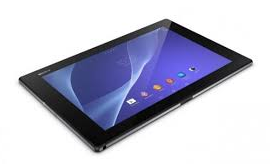 LockLcds dont normally allow users to launch any apps or even take photos. We still need to unlock our Lcds to use certain apps on our handset. But with Sony Xperia Z2 Tablet, you can take photos, record videos and play tracks without unlocking the Lcd. Heres how you can enjoy this feature on your Sony Xperia Z2 Tablet.
To take a photo on a lockLcd
1. Activate first your Lcd by briefly pressing the power key

2. Now activ the camera app
 by dragging the camera icon to the left across the Lcd.
3. And tap
 to take photos or record videos without unlocking your Lcd.
To play an audio on a lockLcd
1. Activate first your Lcd by briefly pressing the power key
.2. Now to display the music player controls, drag
 to the right across the Lcd.
3. And tap
 to play a track on a lockLcd.
To pause an audio track from the lockLcd
1. Activate first your Lcd by briefly pressing the power key
.2. When the music player controls appear, tap
 to pause the track.
To change the currently playing audio track on a lockLcd
1. Activate first your Lcd by briefly pressing the power key
.2. Then tap
 or
or when the music player controls appear.
Sunday, October 12, 2014
How to Add and Resize Widgets on Sony Xperia Z2 Tablet
Adding Widgets on your HomeLcd will help you improve your productivity in using your Sony Xperia Z2 Tablet. If you dont know what widgets means, Widgets are small applications that you can directly use on your HomeLcd. These will serve as your shortcut icon so will no longer need to access your Menu.Follow these steps on how to add widgets on your HomeLcd.
- Tap and hold an empty area on your Home Lcd until your device vibrates.
- There should an option appear, tap on Widgets.
- Select the widget and tap on it you want to add.
- There are some widgets that are resizeable, you can expand them to view the content more on your HomeLcd.
How to resize a Widget:
- Tap and hold the widget you want to resize until it magnifies and the device vibrates. You can tell if the widget is resizeable if the highlighted frame and resizing dots appear.
- You just need to Drag the dots for your preferred size.
- Then tap anywhere on the HomeLcd to confirm the new size of the widget.
Wednesday, October 8, 2014
How to Upgrade With the Latest Software on Samsung Galaxy Young
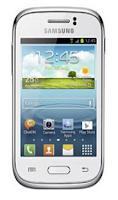
Upgrading with Samsung Kies
1. First launch Samsung Kies.
2. Then connect your phone to the computer using the USB cable that came with it.
3. Now Samsung Kies will automatically recognizes your device and a dialogue box
appears showing the available updates, if any.
4. Click the update button in the dialogue box to start upgrad ting to te latest software.
While youre upgrading the device, you shouldnt turn off the computer or disconnect
te USB cable and dont connect other media devices to the computer as it may interfere
the upgrading process.
Upgrading over-the-air
1. Go the Applications Lcd and then tap Settings.
2. Then go to About device.
3. Select Software Update then hit on Update.
Saturday, October 4, 2014
How to Add a Geotag on a Photo on Sony Xperia Z2 Tablet
Adding a location to those photos somehow adds relevance and it gives you that flashback of memories when you view those nicely captured moments. Well, this feature is not new any longer since its been there online and you often use them on photo-filtered websites. But with Sony Xperia Z2 Tablet, you can now add geotags on your photos right on your handset. Heres how you can add geotag on your photos.1. Open your photo gallery on your device.
2. When youre viewing a photo, just tap the Lcd and the toolbars will display.
3. Now tap
 to open the map Lcd.
4. Find and tap the desired location to put the map on the photo.
5. To adjust the location of the photo, just tap the location on the map to where you want to move the photo.
6. Tap OK when youre done and to save the geotag. You can then return to the photo viewer Lcd.
Friday, October 3, 2014
How to Start a Conference Call on Sony Xperia E

1. If youre on an ongoing call, tap .
.
2. Then dial the number of the second participant and tap .
.
3. When the second participant answers the call, the first call is put on hold.
4. Tap on to start the conference call. Repeat the same steps to add more participants to the conference call.
To have a private conversation with one of the participants
1. Tap the button showing the number of participants during the ongoing conference call.
2. Then tap on the name of the participant you wish to talk privately.
3. To end the conversation and return to the conference call, tap
To release a participant during the ongoing conference call
1. Tap the button showing the number of participants during the ongoing conference call.
2. Then tap next to the participant you want to release from the call.
To end the conference call
1. During the conference call, just tap.
.2. Then dial the number of the second participant and tap
.3. When the second participant answers the call, the first call is put on hold.
4. Tap on
to start the conference call. Repeat the same steps to add more participants to the conference call.To have a private conversation with one of the participants
1. Tap the button showing the number of participants during the ongoing conference call.
2. Then tap on the name of the participant you wish to talk privately.
3. To end the conversation and return to the conference call, tap
To release a participant during the ongoing conference call
1. Tap the button showing the number of participants during the ongoing conference call.
next to the participant you want to release from the call.To end the conference call
1. During the conference call, just tap
.Monday, September 29, 2014
How to Hear Whos Calling on Motorola Electrify M
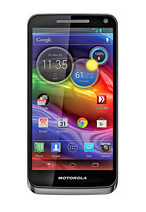
1. On your devices Lcd, touch the Apps icon
 .
.2. Then go to Settings
 .
.3. Select Accessibility.
4. And lastly choose Caller ID Readout to hear whos calling you.
Sunday, September 28, 2014
How to Use HTC Zoe on HTC One M7
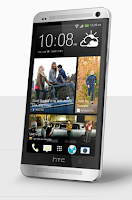
1. On your devices Viewfinder Lcd, tap
 to switch HTC Zoe on.
2. Once youre ready to capture, just tap
 .
.3. When the shutter release icon slowly turns to red
 , continue holding the phone steadily as it still captures a few seconds of shots.
Take note though that camera features like zooming is not available when youre using HTC Zoe feature. To add a little touch of creativity on those pictures, just open and edit them in the Gallery app.
Saturday, September 27, 2014
How to Set Up Voicemail Service on Sony Xperia ZL
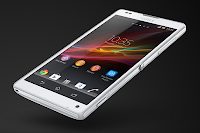
To set up your voicemail number:
1. On your devices homeLcd, tap on Menu icon
 to enter your voicemail number.
2. Go to Settings menu.
3. Select Call Settings and choose Voicemail Settings.
4. Tap on Voicemail number so you can enter your designated voicemail service number.
5. And lastly tap on OK.
To call your voicemail service number:
1. On your homeLcd, tap on the Menu icon
.2.Look for Phone and tap it.
3. And touch and hold for seconds the number 1.
Friday, September 26, 2014
How to Invert Screen Color on iPhone 5S
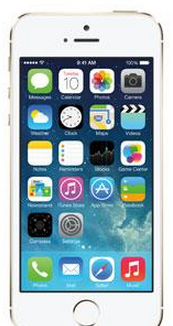 iPhone 5S is dubbed to have a perfect fit on your hand compared to other smartphones in the market. The phone is slimmer, even lighter and has a higher-resolution compared to its predecessors. This 4-inch smartphone allows you to change its Lcd/menu colors for a customize phone and of course for easy viewing. Check out these easy and simple steps and try it yourself.
1. On your iPhone 5S, press on Settings icon.
2. Then go to General.
3. On the list, scroll down to Accessibility.
4. And then switch to turn on the Invert Colors option. That’s how you change your Lcd color for easy viewing.
Thursday, September 25, 2014
How to Send a Multimedia Message and Create a Slideshow on HTC One Evo 3D
1. On your devices homeLcd, tap on
 and go to Messages.
2. Then tap on

3. On the To Field, key in a contact name, mobile number or email address. You can also send it to a group of friends by tapping on

4. To add a subject line, tap on
 and go to Add Subject.
5. Tap on the box that says Add text and there you can type in your special message.
6. Choose an attachment for your message by tapping on

7. After you browse and select an attachment, tap on Send or press
 to save it as a draft. You can also tap on
 to see options like replacing, viewing and removing your attachment.
Now if you wish your Mutimedia Message to reach an extra mile, you can have it on a slideshow format. Heres how you can create one:
once again and select Slide.2. Then choose where you want to insert the next slide.
3. When youre done adding the next slide, you can either do the following:
- tap onand choose to add a video or a photo
- tap onand then audio if you want to add a voice recording or a music to the slide
- tap on Add Text to add a caption
- tap onto view options like replacing, viewing or removing your attachment.
select Preview. If you dont see Preview, scroll down the menu. To view the playback controls, tap once the preview Lcd.5. When its all set and done, press on or tap on Send to save message as a draft.
or tap on Send to save message as a draft.Now you can make someones day a very special one with this creative and personalize MMS.
Subscribe to:
Posts (Atom)