Showing posts with label first. Show all posts
Showing posts with label first. Show all posts
Friday, November 21, 2014
Samsung unveils worlds first Windows Phone 8 device Ativ S
According to the news from CNET, at the 2012 International Consumer Electronics Show (IFA) in Berlin, Samsung Electronics took the wraps off the worlds first Windows Phone 8 mobile phones - Ativ S; even earlier than Microsofts major partner -Nokia.

In the conference held on Wednesday evening, Samsung has launched the worlds first Windows Phone 8 mobile phones - Ativ S, which is one part of the whole Windows 8 products. In addition, also smart PC and tablets equipped with Windows8 is available.
The Ativ S features a 4.8-inch HD Super AMOLED display with 1.5 GHz dual-core processor, also there’s a micro SD card. The back camera reached to 800 million pixels while front camera of 1.9 million pixels. Support for Wi-Fi, NFC, and Bluetooth functionality. Ativ S slim features a slim design, the fuselage is only 0.35 inches, but the battery capacity has reached 2300mAh that should promise longer life.
With Samsung launched the worlds first Windows Phone 8 mobile phone and we will see more Windows Phone 8 devices soon. Rumors have said that HTC and Nokia will launched its Windows Phone 8 phones on September 5.
Samsung has become the worlds largest mobile phone maker now, but in the battle with Apple in patents, it loss 1.05 billion $. Analysts believe that Samsung and other phonemakers will turn to Microsofts Windows system from the Android in the future, because Apple did not have patent dispute litigation with Microsoft.
Today Samsung introduced the worlds first Windows Phone 8 phones, indicate that Samsung did not put all its "eggs" (smartphones Products) in Android basket, and Samsung have faith to stay ahead on all platforms.
Samsung beats Nokia to Windows Phone 8 ?
 Samsung won Nokia at the battle who first releases the windows phone 8 devices. But it means Samsung beats Nokia to Windows Phone 8? May be it remains to see. At least, the Nokia have confidence that the Samsung is only a warm-up act for Nokia.
What the Nokia will bring to us about Windows Phone 8?
ReadMore
The Ativ S features a 4.8-inch HD Super AMOLED display with 1.5 GHz dual-core processor, also there’s a micro SD card. The back camera reached to 800 million pixels while front camera of 1.9 million pixels. Support for Wi-Fi, NFC, and Bluetooth functionality. Ativ S slim features a slim design, the fuselage is only 0.35 inches, but the battery capacity has reached 2300mAh that should promise longer life.
With Samsung launched the worlds first Windows Phone 8 mobile phone and we will see more Windows Phone 8 devices soon. Rumors have said that HTC and Nokia will launched its Windows Phone 8 phones on September 5.
Samsung has become the worlds largest mobile phone maker now, but in the battle with Apple in patents, it loss 1.05 billion $. Analysts believe that Samsung and other phonemakers will turn to Microsofts Windows system from the Android in the future, because Apple did not have patent dispute litigation with Microsoft.
Today Samsung introduced the worlds first Windows Phone 8 phones, indicate that Samsung did not put all its "eggs" (smartphones Products) in Android basket, and Samsung have faith to stay ahead on all platforms.
Samsung beats Nokia to Windows Phone 8 ?
What the Nokia will bring to us about Windows Phone 8?

Sunday, November 16, 2014
Samsung announces their first Tizen powered handset Samsung Z

The South Korean multinational electronics manufacturer has announced their first ever commercially available and industry first smartphone running the companys own Tizen operating system, named the Samsung Z.
Talking a little bit about Samsungs new/old Tizen, it is an Linux-based operating system developed with the American multinational semiconductor chip maker corporation, Intel, which will work on devices, including smartphones, tablets, in-vehicle infotainment devices, smart televisions, computers and smart cameras. Tizen has already made it to the market with Samsungs smart camera, NX300M and wearables like Samsung Gear 2 and Gear 2 Neo in the past. Samsung is all set to showcase their newly unveiled smartphone at their upcoming Tizen Developer Conference, in San Francisco, United States, on 3rd of June, which is tomorrow.
The South Koreans new smartphone and their operating system is said to deliver fast and optimal performance along with responsive multi-tasking, which comes with improved memory management. The phone has also got support to 2D and 3D graphics on board for smooth scrolling and enhanced rendering performance over web browsing. There is the new Ultra Power Saving Mode that lets the phone be operational at minimal battery levels to overcome an emergency situation.
From its design, unlike other smartphones from the Samsungs fleet, the new Samsung Z is more squared-off from its sides, shipping with a the faux leather back battery door with the Galaxy Note 3 like stitching patter on the sides. The phone also features fingerprint reader integrated on the units home button and a heart rate sensor on the back aside the LED flash light, like the companys flagship, Samsung Galaxy S5.
"Samsung is committed to enhancing the mobile experience of consumers with innovation that is both personal and unique to their needs. The Samsung Z integrates the power and adaptability of the Tizen platform, enabling users to browse the web faster and utilize applications more effectively," said DJ Lee, President and Head of Global Sales & Marketing Office, Mobile Communications Business, Samsung Electronics.
The new smartphone from Samsung will be available in Black and Gold color options, which will launch in the third quarter of this year in Russia first, followed by other market, eventually.
In term of the Samsung Zs internal specifications, the handset will come out of the box with a Quad-Core application processor clocked at 2.3GHz, 4.8-inches Super AMOLED High Definition screen of 1280 x 720 resolution display, 16 gigabytes of internal mass storage (expandable via microSD card slot), two gigabytes of Random Access Memory (RAM), eight megapixels main camera on the back with LED flash and traits Mini mode, Quick Shot, Best Photo, Drama, Panorama and Dual Camera, on the front there is a 2.1 megapixels secondary camera, Bluetooth 4.0 LE, Near Field Communication (NFC), IR Blaster and 4G LTE Cat4 connectivity support, along with a 2,600mAh powered battery and runs Tizens version 2.2.1 on top. There is also Samsungs proprietary attributes like the Download Booster, S Health 3.0, and Color theme customization. The device is measures at 138.2 x 69.8 x 8.5 millimeters in dimensions and weighs 136 grams on mass.
.jpg)
Source: SAMSUNG TOMORROW
Saturday, November 15, 2014
LG already sold 100 000 G3s in their first five days in South Korea
.jpg)
A few days back, we had reported you on the domination sales of LGs new 2014 flagship handset in their homeland. The company has basically flattened its rival and the biggest Android smartphone competitor from the market, Samsungs Galaxy S5, which also ships from South Korea.
Well folks, while we are waiting for the handsets launch here in Saudi Arabia and other parts of the world, where LGs new G3 is currently only available in South Korea, this consumer manufacturing giant has reportedly sold about 100,000 units in their native market, that too in just five days after its launch in the country. From the beginning itself, the firm has kept their momentum, retailing about 20,000 to 30,000 devices a day, where Samsung was only able to catch eyes of 7000 to 8000 customers in 24 hours. The reports also read that, LG is selling their new forerunner smartphone twice faster than their predecessor, LG G2, that was being sold around 10,000 handsets at an average day sale, back in August, 2013.
Okay Samsung, Apple, HTC or any other manufacturers fans, we are not claiming this to be the best sale we have ever witnessed till date, where Apple wowed us with their 9 Million mark business in the first weekend, but this is definitely the fastest for an homeland business and LG is setting up a serious challenge to other bellwether devices in the market.
Source: KOREA IT TIMES, GSMArena
Tuesday, September 30, 2014
HTC First Tips and Tricks
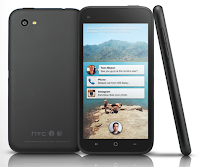
Here are some How Tos for your HTC First. These How Tos may still not yet complete and I am finding some time to work on the others:
How to Factory Reset (Hard Reset) HTC First
Resetting your HTC First will restore the default settings of your device. It will also delete all your files on your phone, so it is recommended to have a backup of your important files on your computer. There are two ways on how to reset your HTC First. It can be done through the settings or through the hardware buttons.
Resetting HTC First on Settings:
Resetting HTC First by Hardware Buttons:
These steps is also helpful when your HTC First is unresponsive or frozen and theres no way to access the settings.
Soft Reset:
Press and hold the Power button for at least 10 seconds. HTC First then restarts.
How to Import Contacts From Old Phone to New Phone (on iPhone, Samsung, HTC and Nokia)
Contacts is very important for everyone of us. We cant connect to our friends without a contact number. If you have a new phone, saving contacts on the phone one by one is so hassle. But now, theres an easy way how to transfer or import your contacts from your old phone to your new phone.
Use your PC to transfer contacts to your new phone. This process is applicable in several phone brands, including iPhone, Samsung, HTC and Nokia.
You just need an Internet Connection on your PC, your old and new phone and their own USB cable.
If you are not prompted with a pop-up window to install the PC Companion, you can also download the PC Companion here.
How to Open and Customize the App Launcher on HTC First
By adding your favourite or often used apps on the app launcher, you can then open apps in just a snap. The steps below will show you how to open HTC First’s app launcher and even customize it for easy access.
Resetting your HTC First will restore the default settings of your device. It will also delete all your files on your phone, so it is recommended to have a backup of your important files on your computer. There are two ways on how to reset your HTC First. It can be done through the settings or through the hardware buttons.
Resetting HTC First on Settings:
- Slide the Notifications panel open, and then tap the Gear Icon or Settings.
- Select Backup & reset.
- Tap Reset phone.
- If you want to delete all your files, then tap Erase all data.
- Then tap OK to confirm.
These steps is also helpful when your HTC First is unresponsive or frozen and theres no way to access the settings.
- First, press and hold the Volume Down button, and then do the same way on the Power button.
- Hold the two buttons until the three Android images appear on the Lcd.
- Release the button when the three Android images appear and press Volume Down.
- Tap on Factory Reset, and then press the Power Button to confirm.
Soft Reset:
Press and hold the Power button for at least 10 seconds. HTC First then restarts.
Contacts is very important for everyone of us. We cant connect to our friends without a contact number. If you have a new phone, saving contacts on the phone one by one is so hassle. But now, theres an easy way how to transfer or import your contacts from your old phone to your new phone.
Use your PC to transfer contacts to your new phone. This process is applicable in several phone brands, including iPhone, Samsung, HTC and Nokia.
You just need an Internet Connection on your PC, your old and new phone and their own USB cable.
Then you need to install the PC Companion program. This is a free application and the installation files are already saved on your new phone. This program can also be used in updating your phone software.
Please note that if you are using the Microsoft Windows 7 operating system on your PC, make sure that the AutoPlay setting is enabled.
To check your settings:
Click Start > Control Panel, then type "autoplay" on the search box. Click the AutoPlay, and mark the check box Use AutoPlay for all media and devices.
Installing the PC Companion:
Installing the PC Companion:
- Turn on your new Phone and connect it to your PC.
- On your new Phone, tap "Install" to install PC Companion on the PC.
- On your computer, if a pop-up window that appears notifies you about available PC Software, select Run Startme.exe.
- Then click Install to start the installation and then follow the instructions to complete the installation.
If you are not prompted with a pop-up window to install the PC Companion, you can also download the PC Companion here.
Transferring your contacts to your new phone:
- Make sure that PC Companion is installed on your PC.
- Open the PC Companion application on your PC.
- Then click Contacts Setup and follow the instructions to transfer your contacts.
How to Set HTC First into Sleep Mode
Like any other device, setting HTC First into sleep mode will somehow save its battery life. Sleep mode puts your device into a lower power state while the display is off. It also prevents accidental button presses when its in your pocket or bag. Heres how you can set HTC First into sleep mode.
1. Briefly press on your devices Power button to turn off the display. Then switch to Sleep Mode.
2. To change the time before your device sleeps, just go to Settings > Display.
3. To wake it up, manually press the Power button and unlock your Lcd.
4. Your device will also automatically wakes up when you have an incoming call.
How to Extend Battery Life of HTC First
1. Briefly press on your devices Power button to turn off the display. Then switch to Sleep Mode.
2. To change the time before your device sleeps, just go to Settings > Display.
3. To wake it up, manually press the Power button and unlock your Lcd.
4. Your device will also automatically wakes up when you have an incoming call.
How to Extend Battery Life of HTC First
Battery Life depends on how you use your device. For HTC First device, if you want to save your battery to last longer hours, you may need to adjust your settings. Follow these suggestions:
• Monitor the usage of your battery:
1. On the Apps Lcd, tap Settings.
2. Tap Battery.
3. Tap an app to check how its using the battery. Youll see how much battery power is used
• Turn down your device volume with the volume keys.
• Then lessen the Lcd brightness and the Lcd lock timeout.
• Close any apps or features when you are done using it so they will not continuously running in the background.
• Turn off the network connection if you are out of range so that your device will stop searching for a network signal.
• You should use the latest version of the software update. Software updates improves some features and fixes some bugs on the previous software version.
• Turn off the camera flash.
• The camera viewfinder can be a power drain, so after youve finished taking photos.
How to Take Screenshots on HTC First
Did you just create a nice piece of art on your new HTC First phone? Or perhaps youve just personalized your Lcd, or share your high game score and want others to know how youve come up with it.Well, take a Lcdshot and brag it to your friends. Its easy to take a picture of the Lcd and share it from Gallery.
• Monitor the usage of your battery:
1. On the Apps Lcd, tap Settings.
2. Tap Battery.
3. Tap an app to check how its using the battery. Youll see how much battery power is used
• Turn down your device volume with the volume keys.
• Then lessen the Lcd brightness and the Lcd lock timeout.
• Close any apps or features when you are done using it so they will not continuously running in the background.
• Turn off the network connection if you are out of range so that your device will stop searching for a network signal.
• You should use the latest version of the software update. Software updates improves some features and fixes some bugs on the previous software version.
• Turn off the camera flash.
• The camera viewfinder can be a power drain, so after youve finished taking photos.
How to Take Screenshots on HTC First
Did you just create a nice piece of art on your new HTC First phone? Or perhaps youve just personalized your Lcd, or share your high game score and want others to know how youve come up with it.Well, take a Lcdshot and brag it to your friends. Its easy to take a picture of the Lcd and share it from Gallery.
Heres how you can capture a Lcdshot of your HTC First device.
- Simultaneously press and hold Power and Volume Down buttons.
- The Lcd is saved in the Screenshots album in Gallery.
How to Clear Call History on HTC First
Either your call logs are just piling up or you simply want to achieve a clean call history list, then you can do the steps below. Heres how to delete or clear call history on your HTC First device.
To delete one name or number
1. On your devices Call History tab, press and hold the name or number you wish to delete.
2. And tap Delete from call history.
To delete the entire call history list
1. On Call History tab, tap then go to Remove call history.
2. On the Delete from call history Lcd, tap
3. Choose Select all and then tap Delete.
How to Make Your HTC First a Wireless Router/Portable Wi-Fi Hotspot
Smartphones these days can now share its mobile data connection and act as a portable Wi-Fi hotspot. And like those high-end gadgets, HTC First is sure to let you experience the benefits of making it as a portable Wi-Fi hotspot. Heres how you can make your HTC First phone the next Wi-Fi hotspot.
Either your call logs are just piling up or you simply want to achieve a clean call history list, then you can do the steps below. Heres how to delete or clear call history on your HTC First device.
To delete one name or number
1. On your devices Call History tab, press and hold the name or number you wish to delete.
2. And tap Delete from call history.
To delete the entire call history list
then go to Remove call history.2. On the Delete from call history Lcd, tap
3. Choose Select all and then tap Delete.
How to Make Your HTC First a Wireless Router/Portable Wi-Fi Hotspot
Smartphones these days can now share its mobile data connection and act as a portable Wi-Fi hotspot. And like those high-end gadgets, HTC First is sure to let you experience the benefits of making it as a portable Wi-Fi hotspot. Heres how you can make your HTC First phone the next Wi-Fi hotspot.
- Slide the Notifications panel open, and then tap the Gear Icon or Settings.
- Under Wireless & Network, tap More.
- Select Mobile network sharing > Portable Wi-Fi hotspot settings.
- Enter your preferred router name, or you can also use the default name.
- Choose the type of security and set a password for your wireless router. (If you selected none, then you dont have to enter a password.)
- Select the Portable Wi-Fi Hotspot option to turn on the wireless router.
When you see the router wireless icon, then your HTC First is ready to be used as a router.
How to Open and Customize the App Launcher on HTC First
By adding your favourite or often used apps on the app launcher, you can then open apps in just a snap. The steps below will show you how to open HTC First’s app launcher and even customize it for easy access.
1. To open the app launcher from your cover feed Lcd,press and hold your profile picture and drag it to
2. Now you can share directly to Facebook by
tapping to post a status
to post a status tapping to post a photo
to post a photo tapping to check into a location.
to check into a location.3. To add your favorite apps to the app launcher for easy access, first swipe right to on the app launcher to see the list of all your apps.
4. And press and hold an app adn drag it to your app launcher on the right.
How to Use Facebook Camera on HTC First
HTC First allows you to snap photos and tag your Facebook friends right away. In this manner, youll get to post photos and tag your friends in an instant. Heres how to use the Facebook camera on HTC First.
How to Use Facebook Camera on HTC First
HTC First allows you to snap photos and tag your Facebook friends right away. In this manner, youll get to post photos and tag your friends in an instant. Heres how to use the Facebook camera on HTC First.
1. On top of the app launcher, tap on Photo.
Photo.2. Then at the bottom of then photo gallery Lcd, tap
.
3. Now youre ready to take a photo. Just point the camera at what you want to capture and tap
4. Once youre done taking a photo, tap
5. Tap on photos you want to post and tap
 to add description. And tap Post.
on photos you want to post and tapto add description. And tap Post.6. Tap a photo thumbnail and tap your friends faces to tag a photo.
How to Use Facebook Messenger on HTC First
When you dont feel like calling your pal using Facebooks free voice calls on your phone then Facebook messenger is a great alternative. Use this app to start private conversations via with your FB friends or to send text messages. Heres how you can use this app on HTC First.
How to Use Facebook Messenger on HTC First
When you dont feel like calling your pal using Facebooks free voice calls on your phone then Facebook messenger is a great alternative. Use this app to start private conversations via with your FB friends or to send text messages. Heres how you can use this app on HTC First.
1. On your device cover feed, press and hold your profile picture and drag it to
2. Then tap to choose a friend to message or simply type a mobile number to send a text.
to choose a friend to message or simply type a mobile number to send a text.3. Now type your message and then tap Send.
How to Turn on NFC on HTC First
Smartphones these days mostly have built-in Near Field Communication or NFC which allows easy sharing of contents like web pages, photos or contacts to someones NFC-enabled mobile device. Heres how to use this feature on HTC First.
How to Turn on NFC on HTC First
Smartphones these days mostly have built-in Near Field Communication or NFC which allows easy sharing of contents like web pages, photos or contacts to someones NFC-enabled mobile device. Heres how to use this feature on HTC First.
1. To turn on NFC and Android Beam feature on your phone, go to Settings.
2. Under Wireless and Networks, tap More.
3. Then from there you can now turn on the NFC and Android Beam options.
4. To share contents, both devices must have NFC and Android Beam feature turned on.
5. On the Lcd where you want to share the content, hold your device and the other device back to back.
6. You will then hear a sound and both devices will vibrate slightly when connected.
7. And tap Lcd which you want to share. Then the shared content will now appear on the recipients Lcd.
Tuesday, September 2, 2014
Amazon Launches Their First Mobile Game Air Patriots
Amazon Launches Their First Mobile Game Air Patriots - Rumored that Amazon not long ago, exactly on this past summer has launched an Amazon game studios and their first game is named Living Classics and not only that, because the Amazon has done the next steps to promote this game and enter the market with announce their first mobile game in Water Patriots.
Amazon game studio is mentioned will be available for several platforms such as iOS and Android, of course, this game will be on the Kindle Fire tablet is a tablet that is produced by the Amazon and of course the game was given to Kindle Fire tablet for free. Worth mentioning that the Amazon provides a touch more for the tablet version of the Kindle Fire as their production and these games also have a track achievement and high scores are gamecircle owned by the Amazon and also added Whispersync feature that allows users to save their progress in playing these games on the one device they have and then users can play these games on other devices.
Game launched by the Amazon looks similar to Tower Defense game where users will describe the direction for aircraft that aims to prevent the arrival of tanks arrive. We wait for the next information about the presence of Amazons Game in iOS and Android devices?
![Air]()
Amazon game studio is mentioned will be available for several platforms such as iOS and Android, of course, this game will be on the Kindle Fire tablet is a tablet that is produced by the Amazon and of course the game was given to Kindle Fire tablet for free. Worth mentioning that the Amazon provides a touch more for the tablet version of the Kindle Fire as their production and these games also have a track achievement and high scores are gamecircle owned by the Amazon and also added Whispersync feature that allows users to save their progress in playing these games on the one device they have and then users can play these games on other devices.
Game launched by the Amazon looks similar to Tower Defense game where users will describe the direction for aircraft that aims to prevent the arrival of tanks arrive. We wait for the next information about the presence of Amazons Game in iOS and Android devices?
Monday, September 1, 2014
Yolo Smartphones Intel Inside First with Spec 3 5 inch screen
Reported a telecom operator from the Safaricom Kenya Limited collaborates with Intel to bring a smartphone with Intel Insides first African country named Yolo. Intel said that the party was created and intended for customers who want excellent performance on a smartphone, but at an affordable price. Yolo smartphones will be sold in Africa at a price of KES 10,999, and added a free 500 MB of data in sales.
 |
| Google Images |
Specifications of the smartphone Yolo, among others, is to have a screen size of 3.5, supported by the latest Intel chipset aimed at emerging markets. As it is known that this chipset has been shown at CES 2013 ago. But Intel also claims that smartphones can surf ria Yolo maximum speed and also has impressive multimedia capabilities and is reliable.
One Safaricom General Manager Consumer Bussiness Unit is Peter Arina said that "Intel-based Smartphone Yolo is a unique balance between price and performance, we think this is a real breakthrough," as he explained.
Meanwhile, smartphone connectivity Yolo already supports HSPA + connectivity, but unfortunately were not informed about the capacity of the RAM and the internal memory is in this smartphone but the smartphone is equipped with a MicroSD card slot to facilitate the addition of memory storage capacity for users. Not ketinggalann for embedded camera resolution 5 megapixel camera that can record 1080p video and also a FM radio feature in it.
Yolo user manual guide pdf is not yet available, please wait for mobile will be released
Subscribe to:
Posts (Atom)