Showing posts with label 8. Show all posts
Showing posts with label 8. Show all posts
Friday, November 21, 2014
Samsung unveils worlds first Windows Phone 8 device Ativ S
According to the news from CNET, at the 2012 International Consumer Electronics Show (IFA) in Berlin, Samsung Electronics took the wraps off the worlds first Windows Phone 8 mobile phones - Ativ S; even earlier than Microsofts major partner -Nokia.

In the conference held on Wednesday evening, Samsung has launched the worlds first Windows Phone 8 mobile phones - Ativ S, which is one part of the whole Windows 8 products. In addition, also smart PC and tablets equipped with Windows8 is available.
The Ativ S features a 4.8-inch HD Super AMOLED display with 1.5 GHz dual-core processor, also there’s a micro SD card. The back camera reached to 800 million pixels while front camera of 1.9 million pixels. Support for Wi-Fi, NFC, and Bluetooth functionality. Ativ S slim features a slim design, the fuselage is only 0.35 inches, but the battery capacity has reached 2300mAh that should promise longer life.
With Samsung launched the worlds first Windows Phone 8 mobile phone and we will see more Windows Phone 8 devices soon. Rumors have said that HTC and Nokia will launched its Windows Phone 8 phones on September 5.
Samsung has become the worlds largest mobile phone maker now, but in the battle with Apple in patents, it loss 1.05 billion $. Analysts believe that Samsung and other phonemakers will turn to Microsofts Windows system from the Android in the future, because Apple did not have patent dispute litigation with Microsoft.
Today Samsung introduced the worlds first Windows Phone 8 phones, indicate that Samsung did not put all its "eggs" (smartphones Products) in Android basket, and Samsung have faith to stay ahead on all platforms.
Samsung beats Nokia to Windows Phone 8 ?
 Samsung won Nokia at the battle who first releases the windows phone 8 devices. But it means Samsung beats Nokia to Windows Phone 8? May be it remains to see. At least, the Nokia have confidence that the Samsung is only a warm-up act for Nokia.
What the Nokia will bring to us about Windows Phone 8?
ReadMore
The Ativ S features a 4.8-inch HD Super AMOLED display with 1.5 GHz dual-core processor, also there’s a micro SD card. The back camera reached to 800 million pixels while front camera of 1.9 million pixels. Support for Wi-Fi, NFC, and Bluetooth functionality. Ativ S slim features a slim design, the fuselage is only 0.35 inches, but the battery capacity has reached 2300mAh that should promise longer life.
With Samsung launched the worlds first Windows Phone 8 mobile phone and we will see more Windows Phone 8 devices soon. Rumors have said that HTC and Nokia will launched its Windows Phone 8 phones on September 5.
Samsung has become the worlds largest mobile phone maker now, but in the battle with Apple in patents, it loss 1.05 billion $. Analysts believe that Samsung and other phonemakers will turn to Microsofts Windows system from the Android in the future, because Apple did not have patent dispute litigation with Microsoft.
Today Samsung introduced the worlds first Windows Phone 8 phones, indicate that Samsung did not put all its "eggs" (smartphones Products) in Android basket, and Samsung have faith to stay ahead on all platforms.
Samsung beats Nokia to Windows Phone 8 ?
What the Nokia will bring to us about Windows Phone 8?

Thursday, November 20, 2014
New details about the application for the lock screen in Windows Phone 8 1
The month of April at the Microsoft event held in San Francisco, Redmond unveiled its new version of mobile operating system,Windows Phone 8.1. As you know the new OS versionbrings many improvementsand features,some of them highly sought afterby users as the expectedaction center, independent volume control or the expected voice assistant Cortana.
One of the improvements that were also announced was the ability to customize our lock screen, this new functionality whenit has not been possible to test itin the Preview version of Windows Phone 8.1 developers.
As usual there are manyusers who ask Joe Belfiore on developmentsthat will bring future updates of applications.Againreplied Joe Belfioregiving users important news about thenew application for the lock screen.
After several tests have ruled that time comes the new applicationterminals with 512 MB of RAMbecause it can compromise the speed of flow of the entire operating system, so the new application is expected toarrive in two weekswill beterminals available for at least 1 GB of RAM.
Joe Belfiore has also given details about the Facebook application,are working closely with Facebooktocorrect errors in the applicationand improve stability, this update should arrive in summer.Also expected to soon reach new universal applications, which are being taken very seriously.
Do you striking application to the lock screen?
Wednesday, November 19, 2014
Prepare Samsung Galaxy Fonblet 5 8 Inch
The news was reported by media sources quoted SamMobile related. Reportedly, Samsungs patented Fonblet name because it combines the functions of a smartphone with a tablet PC.Not many specs that appear in this leak. The screen size at 5.8 inches, bigger than Galaxy Note II.
His form is reportedly similar to the music player Galaxy Player. While Jelly Bean Android operating system and has Dual SIM capability.
Excerpted from The E-Mauli Inquistr, Monday (01/22/2013), Galaxy Fonblet likely introduced at the Mobile World Congress in February. This event will reportedly be the emergence of the Galaxy Note 8.0.
His form is reportedly similar to the music player Galaxy Player. While Jelly Bean Android operating system and has Dual SIM capability.
Excerpted from The E-Mauli Inquistr, Monday (01/22/2013), Galaxy Fonblet likely introduced at the Mobile World Congress in February. This event will reportedly be the emergence of the Galaxy Note 8.0.
Tuesday, November 18, 2014
How to get the BeagleBone Black Drivers to work on Windows 8 computer
To install the drivers, the windows 8 computer needs to be restarted in the mode where it allows you to install unsigned drivers.
Heres a quick step-by-step guide:
1. Press win+c on the keyboard to bring up the charms side bar (or move mouse to right top corner of the screen)
2. Click the Settings button.
3. Click the Change PC Settings at the bottom of the sidebar.
4. On screen that shows up, select the General option from the sidebar then scroll down the page that appears.
5. Click the Restart now button under the Advanced startup section.
6. You will momentarily see the restarting screen, then it will switch to a blue screen titled "Choose an option"
7. Click the Troubleshoot button.
8. Click Advanced options.
9. Click Startup Settings
10. Click Restart
11. You should then see a Startup Settings screen after your computer reboots.
12. Press 7 or F7 on your keyboard to Disable driver signature enforcement
13. Now Windows 8 will continue starting up.
14. For Windows 8 64-bin: Log-in as normal, and then run BONE_D64.exe again (Click on Link to download)
15. For Windows 8 32-bin: Log-in as normal, and then run BONE_DRV.exe again (Click on Link to download)
16. Now you should see 4 warning dialogs about "unsigned driver installation", click OK for all of them.
ReadMore
Heres a quick step-by-step guide:
1. Press win+c on the keyboard to bring up the charms side bar (or move mouse to right top corner of the screen)
2. Click the Settings button.
3. Click the Change PC Settings at the bottom of the sidebar.
4. On screen that shows up, select the General option from the sidebar then scroll down the page that appears.
5. Click the Restart now button under the Advanced startup section.
6. You will momentarily see the restarting screen, then it will switch to a blue screen titled "Choose an option"
7. Click the Troubleshoot button.
8. Click Advanced options.
9. Click Startup Settings
10. Click Restart
11. You should then see a Startup Settings screen after your computer reboots.
12. Press 7 or F7 on your keyboard to Disable driver signature enforcement
13. Now Windows 8 will continue starting up.
14. For Windows 8 64-bin: Log-in as normal, and then run BONE_D64.exe again (Click on Link to download)
15. For Windows 8 32-bin: Log-in as normal, and then run BONE_DRV.exe again (Click on Link to download)
16. Now you should see 4 warning dialogs about "unsigned driver installation", click OK for all of them.
Monday, November 10, 2014
LG G Pad 8 3 coming on Verizons network leaks suggest

The South Korean multinational electronics manufacturers long awaited slate, officially introduced back on September, 2013 is now all set to make its debut on the United States Big Red network operator, Verizon Wireless.
The 8.3-inches tablet is will hit the Stateside carrier with their LTE connectivity ready out of the box, of course meaning to compensate SIM card slot on board, where we can see the thick 4G LTE logo on the back alongside the Verizon branding on both front and back sides of the upcoming slate. Well, if you dont remember our reported specs of the certain tablet we are talking about, we are glad for a refresher. The LG made G Pad 8.3 will score a Quad-Core Qualcomm Snapdragon 600 processor, speeding at 1.7GHz, 8.3-inches Full High Definition WUXGA screen of 1920 x 1200 pixels, marked at 273 pixels-per-inch, 16 gigabytes of internal storage, 2 GB RAM, a five megapixels primary shooter and a 1.3 megapixels front facing camera, 4,600mAh powered battery and runs Android 4.2 Jelly Bean.
.jpg)
Source: evleaks (Twitter)
Sunday, November 2, 2014
How To Manage Lock Screen In Windows 8
“Windows 8” the latest operating system launched few months ago. It is loaded with attractive features like UEFI interface, Hybrid boot, Windows to go etc. Microsoft has introduced lot of changes in the Lock Screen. The concept of Lock screen is devised show a state when computer is not used. Lock screen was also used in the previous version of windows operating system but in Windows 8 OS Lock screen is revived to extent beyond expectation. The concept of Lock screen introduced in Windows 8 looks to be inspired from Smartphone’s. Lock screen is generated in a computer when a user locks his/her computer, restart it or wake up from sleep state.
Basic Lock screen contains the following information:
- Lock Screen Background Image.
- Today’s Date with time.
- Current status of available network and Battery status.
- Press Window + R key, this key combination will initiate/opens a new window on your monitor screen. This is known as RUN window.
- Then type “gpedit.msc” in the text box and press Enter key, this command will open “Group Policy editor” window.
- On the left panel of Window click on computer configuration, click on Administrative templates, and then click on Control panel. Now lists of option appears on left panel of screen, out of them click on Personalization.
- Then in the right pane of window you will get option to change configure the lock screen and Start menu.
- You can enable/disable lock screen through these option, change Lock screen image and Start menu background.
- Press Window + R key, this key combination will initiate/opens a new window on your monitor screen. This is known as RUN window.
- Then type “regedit” in the text box and press Enter key, this command will opens Registry Editor.
- A new window appears on your screen which contains list of registries files. You have to find the following registry:
“HKEY_LOCAL_MACHINESOFTWAREPoliciesMicrosoftWindowsPersonalization”
- If you are not able to find create a new registry file DWORD NoLockScreen and set its value to 1 to disable it or set its value to 0 if you want to disable it.
- Then Restart your computer to make changes to take affect.
- Thats It!
Thursday, October 2, 2014
Samsung Galaxy Note 8 0 Tips and Tricks
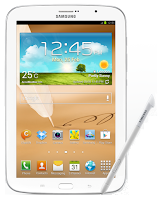
Here are some How Tos for your Samsung Galaxy Note 8.0. These How Tos may still not yet complete and I am still working on the others:
How to Factory Reset Samsung Samsung Galaxy Note 8.0
Restoring the default settings or factory reset your Samsung Galaxy Note 8.0 will delete all your existing files. It is recommended to backup your important files on your computer before attempting to reset your device.
The steps below are the instructions on how to factory reset your Samsung Galaxy Note 8.0:
Step 1. On your HomeLcd, tap on MENU icon.
Step 2. Select "Settings", then scroll down and tap "Backup and reset" option.
Step 3. Then tap on “Factory Data Reset”.
Step 4. Read warning carefully before tapping the “Reset Device”.
Step 5. If you want to proceed in resetting your device, tap on “Delete All” to confirm the Reset.
Now, you just need to wait while your device is resetting. It should reboot itself and you will have a new start on your Samsung Galaxy Note 8.0.
You may also use the shortcut method using the code: Enter *2767*3855# on your device.
How to Reduce the Battery Consumption on Samsung Galaxy Note 8.0
Battery Life depends on how you use your device. For Samsung Galaxy Note 8.0 device, if you want to save your battery to last longer hours, you may need to adjust your settings.
All of us want to have a longer battery life on our phones. Follow these suggestions to reduce the battery consumption:
- Switch to Sleep mode by pressing the Power key when you are not using your device.
- Close any apps or features when you are done using it so they will not continuously running in the background.
- Turn off the network connection if you are out of range so that your device will stop searching for a network signal. (deactivate the Bluetooth feature, turn off the Wi-Fi feature when not in use, etc).
- Deactivate auto-syncing of applications.
- Decrease the backlight time.
- Lessen the Lcd brightness and the Lcd lock timeout.
Extend battery life when the Pen is attached:
- From your Home Lcd, tap on Apps icon.
- Select Settings, then go to S Pen.
- Then tap on Battery saving.
How to Reformat Memory Card on Samsung Galaxy Note 8.0
Formatting the memory card on your Samsung Galaxy Note 8.0 will delete all the files that is stored on the memory card. It is recommended to backup your important files on your computer before attempting to format your memory card.
You may not be able to reformat your memory card on your computer. So try it through your device:
1. On your Home Lcd, tap Apps.
2. Select Settings.
3. Go to Storage.
4. Then tap Format SD card.
5. Just follow the on-Lcd instruction on how to confirm the format.
How to Secure Your Samsung Galaxy Note 8.0 (Face Unlock, Face and Voice Unlock, Pattern and Password)
Securing your Samsung Galaxy Note 8.0 is also important, specially if you have a private files that you dont want others to access it. So to prevent others from using your or accessing your personal data without your permission, then you may need to activate the security features. The device requires an unlock code whenever unlocking it.
Setting a face unlock:
1. On the Applications Lcd, tap Settings.
2. Select Lock Lcd.
3. Then choose Screen lock.
4. Tap Face unlock.
Fit your face in the frame to be captured. Then, set a backup unlock PIN or pattern to unlock the Lcd in case the face unlock fails.
Setting a face and voice unlock:
1. On the Applications Lcd, tap Settings.
2. Select Lock Lcd.
3. Then choose Screen lock.
4. Tap Face and voice.
Fit your face in the frame to be captured and then set a voice command. Then, set a backup unlock PIN or pattern to unlock the Lcd in case the face and voice unlock fails.
Setting a pattern:
1. On the Applications Lcd, tap Settings.
2. Select Lock Lcd.
3. Then choose Screen lock.
4. Tap Pattern.
Draw a pattern by connecting four dots or more, and then draw the pattern again to verify it. Set a backup unlock PIN to unlock the Lcd when you forget the pattern.
Setting a PIN:
1. On the Applications Lcd, tap Settings.
2. Select Lock Lcd.
3. Then choose Screen lock.
4. Tap PIN.
Enter at least four numbers, and then enter the password again to verify it.
Setting a password:
1. On the Applications Lcd, tap Settings.
2. Select Lock Lcd.
3. Then choose Screen lock.
4. Tap Password.
Enter at least four characters including numbers and symbols, and then enter the password again to verify it.
Setting a face unlock:
1. On the Applications Lcd, tap Settings.
2. Select Lock Lcd.
3. Then choose Screen lock.
4. Tap Face unlock.
Fit your face in the frame to be captured. Then, set a backup unlock PIN or pattern to unlock the Lcd in case the face unlock fails.
Setting a face and voice unlock:
1. On the Applications Lcd, tap Settings.
2. Select Lock Lcd.
3. Then choose Screen lock.
4. Tap Face and voice.
Fit your face in the frame to be captured and then set a voice command. Then, set a backup unlock PIN or pattern to unlock the Lcd in case the face and voice unlock fails.
Setting a pattern:
1. On the Applications Lcd, tap Settings.
2. Select Lock Lcd.
3. Then choose Screen lock.
4. Tap Pattern.
Draw a pattern by connecting four dots or more, and then draw the pattern again to verify it. Set a backup unlock PIN to unlock the Lcd when you forget the pattern.
Setting a PIN:
1. On the Applications Lcd, tap Settings.
2. Select Lock Lcd.
3. Then choose Screen lock.
4. Tap PIN.
Enter at least four numbers, and then enter the password again to verify it.
Setting a password:
1. On the Applications Lcd, tap Settings.
2. Select Lock Lcd.
3. Then choose Screen lock.
4. Tap Password.
Enter at least four characters including numbers and symbols, and then enter the password again to verify it.
P.S. To learn how to earn Minimum of $4,485 per Week, CLICK HERE and Watch the Video.
Wednesday, October 1, 2014
Return to the Start Screen of Windows 8 8 1 to erlier conditions
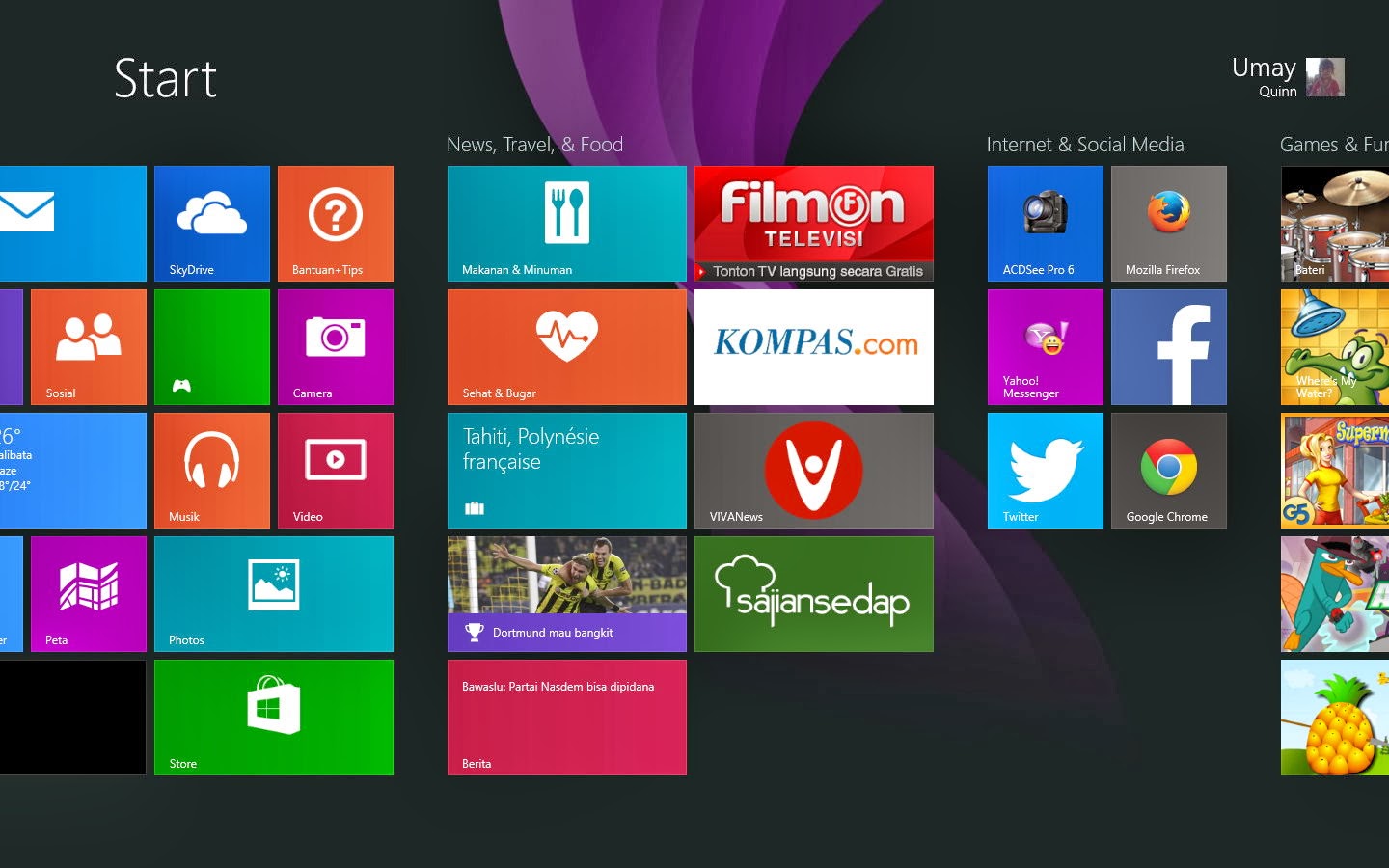
Windows 8/8.1 has the look of the Start Screen that is different from earlier versions of Windows. On the Metro or Modern UI mode, the application that is installed is displayed in the form of Tile. But what if the display is already too much and you want to return it to original condition? For that you can do the following simple steps:
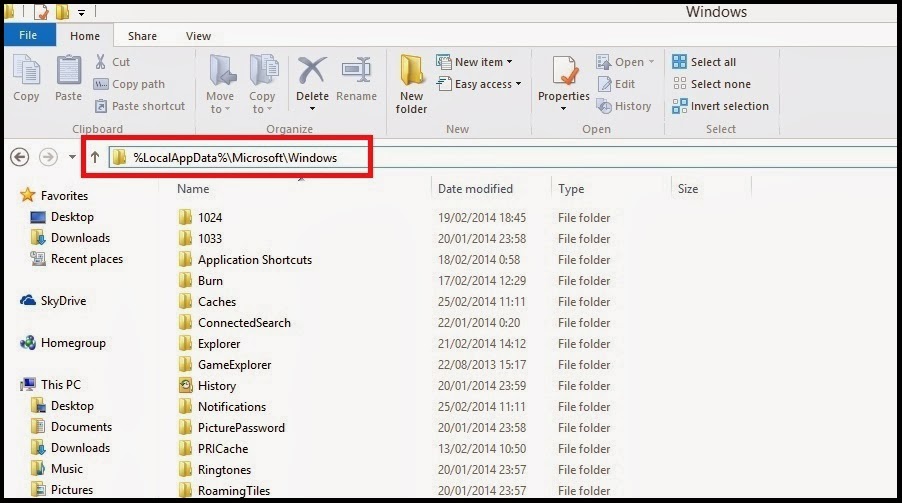
1. go to the look of the Desktop, open the Window Explorer, and type the following commands in the address bar%LocalAppData%MicrosoftWindows.
Or it could be by directly pressing the Windows key + R to go to the Run dialog box, and type%LocalAppData%MicrosoftWindows.
2. in this folder you will find two files, namely appsFolder.-ms itemdata and appsFolder.-p. itemdata bak. If you want to return to the Start Screen display the initial conditions in Windows 8/8.1, you delete the two files reside. Next restart.
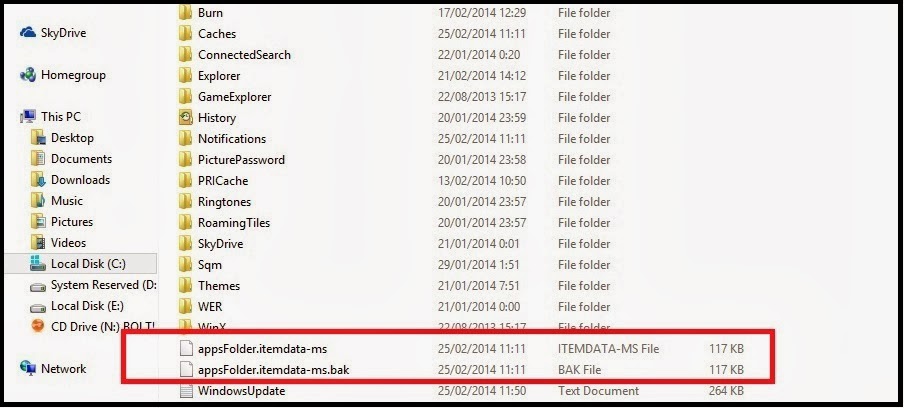
3. you can also save the two files to a different folder if one time it wants to return to the Start Screen display. How to restore it just put the two files into the folder again.
Remove the Tile will not remove (uninstall) the application. Existing applications will not be lost and remain there. If you want to uninstall the application completely, you can do it Uninstall through Control Panel.
Sunday, September 21, 2014
Manual Update Galaxy Note 8 0 N5100 with XXBMF1 Jelly Bean 4 1 2 Firmware
Galaxy Note 8.0 N5100 can now be updated with the Official Android 4.1.2 XXBMF1 Jelly Bean Firmware which comes with the added stability and bug fixes. Just in case if you still haven’t got the update of this firmware, you can now manually update the same. The best part of this update is that this is the Official firmware and not the beta or custom ROM firmware. Before we proceed to check on what are the instructions to apply with this firmware, you will need to follow the list of pre requisites which we have mentioned below.

Note: Applying with this firmware won’t root / void the warranty in any manner.
Quick Pre Requisites:
- Create a backup of all your data with the help of below mentioned steps. Though, you can back up the data with KIES as well, we recommend you to backup manually with the help of below mentioned steps as sometimes KIES refuses to detect the device.
SMS – Use “SMS Backup & Restore app”,
Contacts – Sync with the Gmail application,
Call Log - Call Log and Restore
Images, Songs, Videos, Files – Copy to internal / External SD Card,
APN and MMS Settings – Note down from the path “Applications > Settings > Wireless and Network > Mobile Networks > Access Point Names”
- From the path “Settings > Development Options > USB debugging” enable the USB Debugging Mode. Minimum charge left in your phone is 30% or else there is a risk of device getting turned off in the middle of rooting process.
Disclaimer: Follow all the instructions mentioned in this article as if there is any damage caused due to not following instructions then we shall not be held liable or responsible. Just in case if you face any issues then we will try our level best to address the same.
Assuming that you are done with all the above mentioned steps, you can now proceed to the next step where we have mentioned the detailed guide on how to apply with this firmware update.
Procedure to Update Galaxy Note 8.0 N5100 with Jellybean 4.1.2 Firmware:
- Download the Jellybean 4.1.2 Firmware Package and Odin from here to your computer. Once downloaded, extract both the files in your computer and open Odin in your computer.
- Open Odin in your computer. Download Mode in Galaxy Note 8.0 can be entered by first turning Off the device and then hold Volume Down Rocker Key + Menu Button and then Power ON the device. Once the device is booted and you see the Download Mode Green Robot, you can release the button combos.
- Connect your device to the computer with the help of original USB cable and then you will see that the ID : COM section will turn Yellow / Green, indicating that all the drivers are installed successfully.
- Click on “PDA” to select the tar file which you got from the firmware package which is the TAR File which you got after extracting the file from the first step.
- Once all the file is selected, click on “Start” to start the process of firmware update. Once the firmware update process is completed which will be mentioned in the ODIN, the Galaxy S2 device will be rebooted.
- For firmware update to be finished, it will take around 2-3 minutes for applying the update. Once the device is updated successfully, the device will be rebooted. As soon as you see the Language preferences or the Home Screen, you need to disconnect the device from computer and enjoy using your phone.
Note: If the device gets into the boot loop sequence or say gets stuck in the welcome Lcd, just re insert the battery and re follow the above instructions so as to again follow the above mentioned instructions.
Do let us know in the comments section just in case if you face any issues in the process of firmware update in the comments section as we will try our level best to sort out the same.
Friday, September 19, 2014
Karbonn Smart A27 with 5″ qHD Display 1GHz Dual Core Processor
Just after launching the Karbonn Titanium S9 Android smartphone few days back, its now time to speak about one more smartphone from Karbonn dubbed as “Karbonn Smart A27+” smartphone which comes with decent amount of specs along with the 5 inches of Screen Size. This smartphone gives a tough to other smartphones like Xolo, LAVA, Micromax and to a certain extent for Samsung as well. So, let’s check out on what are the specs and features of this smartphone in detail below;

Specs & Features of Karbonn Smart A27+ Android Smartphone:
With 5 inches of Screen Size, it comes with the resolution of 540 x 960 which many sound bit less but pictures look effortlessly clear. This smartphone comes with the 8MP Rear Facing Camera along with the front Facing Camera as well. This device is also a Dual Sim capable as it can house GSM + GSM Capability. Additionally, it also comes with all other basic features like GPRS, EDGE, 3G, Wi-Fi (802.11 b/g/n), FM Radio along with the latest Jellybean 4.1 Android OS.
With 5 inches of Screen Size, it comes with the resolution of 540 x 960 which many sound bit less but pictures look effortlessly clear. This smartphone comes with the 8MP Rear Facing Camera along with the front Facing Camera as well. This device is also a Dual Sim capable as it can house GSM + GSM Capability. Additionally, it also comes with all other basic features like GPRS, EDGE, 3G, Wi-Fi (802.11 b/g/n), FM Radio along with the latest Jellybean 4.1 Android OS.
This device also comes with the 4GB of internal memory along with the expandable memory card slot of 32GB and 512MB RAM. In terms of battery, this device has a 2000mAh of battery which is great batter power. For your convenience, we have also mentioned the detailed list of specs below.
- 5.0-inch qHD display,
- 1GHz dual-core processor with 512MB,
- 4GB internal storage, expandable up to 32GB via microSD card,
- Dual SIM (GSM+GSM),
- 8.0-megapixel rear camera,
- Secondary camera as VGA,
- GPRS, EDGE, 3G, Wi-Fi (802.11 b/g/n), FM Radio
- Android 4.1 Jelly Bean
- 2000Mah Battery
The price of Karbonn Smart A27+ Android smartphone is priced at Rs. 8,999. This device can be purchased from all leading Online as well as Offline Stores. Do let us know in the comments section about this smartphone.
Thursday, September 18, 2014
Samsung Galaxy TAB 8 9 AT T SGH i957
Tech Specs :
| Samsung Galaxy Tab 8.9 - AT&T – SGH-i957 | |
| General and Software | |
| Codes / Prices | SGH-i957ZKAATT - $629.99 – contract 2-yr $479.99 |
| Countries | USA (AT&T) |
| Form Factor | Touchscreen Tablet / Candybar |
| Operating System | Android 3.2 (Honeycomb) – TouchWiz Interface |
| Physical Keyboard | No – Virtual QWERTY |
| Announced | 2011, August |
| Status Available | 2011, November |
| Browser & Internet | Yes, HTML, HTML5 |
| Adobe Flash Support | Adobe Flash 10.2 |
| Java | MIDP emulator |
| Display | |
| Size, diagonal | 8.9 inches |
| Display Resolution | WXGA 1280 x 800 pixels |
| Generalized Pixel Density | 170 ppi |
| TFT, Touchscreen, capacitive, 16M colors | |
| Connectivity | |
| WAN / Network 2G | GSM: 850 / 900 / 1800 / 1900 MHz |
| WAN / Network 3G | UMTS 850 / 1900 / 2100 MHz |
| WAN / Data | GPRS / EDGE // HSPA (HSDPA / HSUPA) |
| WAN / Network 4G | LTE 700 Class 17, 1700 / 2100 MHz – HSPA+ |
| Wireless LAN | Wi-Fi 802.11 b / g / n – DLNA – Wi-Fi mobile hotspot |
| Bluetooth | Bluetooth 3.0 + EDR + A2DP |
| USB | USB 2.0 |
| Audio/Video Output | Yes |
| Audio jack 3,5 mm | Yes |
| GPS / Location Based Services | A-GPS |
| Camera | |
| Camera Resolution (max) | 3.2 megapixels, 2048x1536 pixels (Rear) |
| Camera secundary | 2.0 megapixels (Front) |
| Camera Focus | Autofocus |
| Camera Flash | Flash LED |
| Additional Camera Features | Auto Focus; Shot Modes, Action, Auto, Beach, Candelight,Fireworks, Landscape, Night,Party, Portrait, Snow, Sunset |
| Media | |
| Audio Player | 3GP, AAC, AAC+, AMR, eAAC+, iMelody, MIDI, MP3, MP4, OGG,WAV, WMA |
| Video Player | 3GP, AMR, H.263, H.264, MPEG4,QCIF |
| Video Recording | 720p HD (1280 x 720 pixels) |
| Loudspeaker | Yes |
| Radio FM | No |
| Voice Recording | Yes |
| Video calling | |
| Processor and memory | |
| Processor / SoC | Qualcomm Snapdragon dual-core processor, ARM9 |
| Processor Clock Speed | 1.5 GHz |
| RAM | 1GB |
| Internal memory | 16GB |
| Memory Card Size Supported | No |
| Sensors | |
| Accelerometer | Yes |
| Digital Compass | Yes |
| Proximity Sensor | Yes |
| Ambient Light Sensor | Yes |
| Notifications | Vibration; MP3, WAV ringtones |
| Power | |
| Battery Type | Battery LI-Polymer 6000 mAh |
| Talk time | Up to 9 hours |
| Stand-by time | Up to 400 hours |
| Divers | |
| Messaging | Email (IMAP, POP3, SMTP), Instant Messaging (Google Talk), Video Chat, Picture Messaging, Text Messaging, Threaded/ChatStyle, Video Messaging |
| Games | Yes |
| Color | Black |
| Phone Book | Yes |
| Organizer | Yes |
| Agenda | Yes |
| Calendar | Yes |
| Task | Yes |
| Notes | Yes |
| Voice memo | Yes |
| Predictive text | Swype – T9 |
| Watch | Yes |
| Alarm | Yes |
| Diary | Yes |
| Calculator | Yes |
| Documend Viewer | Yes |
| Flight mode | Yes |
| Weight | 451 grams (15.9 oz) |
| Dimensions | 230.9 x 157.8 x 8.6 mm (9.09 x 6.21 x 0.34 in) |
| Moltitasking – Microsoft Office compatible | |
| Computer synchronization, OTA synchronization | |
| Gmail – Google Calendar – Google Contact Sync – Google Latitude – Google Maps Street View – Google Maps – Google Maps Navigation – Google Quick Search Box – Google Talk – Google eBooks – Google Search by Voice – YouTube | |
| Downloadable Content; Wallpapers, Animated; Samsung Widget Gallery; Samsung Media Hub | |
| 4G speeds delivered by HSPA+ (with enhanced backhaul) or LTE, where available | |
Gallery:


Thursday, August 28, 2014
Download Bitdefender Antivirus Plus 2013 for Windows 8
BitDefender, a manufacturer of popular antivirus and security software on the Internet, has just launched their latest product safety BitDefender Antivirus Plus 2013, BitDefender Internet Security 2013 and BitDefender Total Security 2013 with new features and interface improvements. Immunizer USB, and anti-theft features SafePay for the purposes of e banking is one of the key features in their latest rislis.
While BitDefender USB Immunizer SafePay and are present in all three products, but the anti-theft feature is only available in the version of Total Security 2013.
The new version of BitDefender, BitDefender Antivirus Plus 2013 is compatible with Microsofts latest operating system Windows 8. All three products include antivirus, antispyware, autopilot, antiphishing, search advisor and social network protection functions. While advanced features such as two-way firewall, parental controls, antispam, anti-theft, safebox and tune-ups are available at Total Security, while safebox, tune-up and anti-theft is not present in the version of Internet Security.
With BitDefender SafePay, you can conduct secure online transactions. SafePay page will automatically open an e-banking and shopping in a separate and secure browser. Another new feature, automatic USB Immunizer protect USB drives from viruses and other harmful elements. Bitdefender Antivirus Plus 2013 Download here
![Download]()
With BitDefender SafePay, you can conduct secure online transactions. SafePay page will automatically open an e-banking and shopping in a separate and secure browser. Another new feature, automatic USB Immunizer protect USB drives from viruses and other harmful elements. Bitdefender Antivirus Plus 2013 Download here

Subscribe to:
Posts (Atom)