Showing posts with label lg. Show all posts
Showing posts with label lg. Show all posts
Saturday, November 15, 2014
LG already sold 100 000 G3s in their first five days in South Korea
.jpg)
A few days back, we had reported you on the domination sales of LGs new 2014 flagship handset in their homeland. The company has basically flattened its rival and the biggest Android smartphone competitor from the market, Samsungs Galaxy S5, which also ships from South Korea.
Well folks, while we are waiting for the handsets launch here in Saudi Arabia and other parts of the world, where LGs new G3 is currently only available in South Korea, this consumer manufacturing giant has reportedly sold about 100,000 units in their native market, that too in just five days after its launch in the country. From the beginning itself, the firm has kept their momentum, retailing about 20,000 to 30,000 devices a day, where Samsung was only able to catch eyes of 7000 to 8000 customers in 24 hours. The reports also read that, LG is selling their new forerunner smartphone twice faster than their predecessor, LG G2, that was being sold around 10,000 handsets at an average day sale, back in August, 2013.
Okay Samsung, Apple, HTC or any other manufacturers fans, we are not claiming this to be the best sale we have ever witnessed till date, where Apple wowed us with their 9 Million mark business in the first weekend, but this is definitely the fastest for an homeland business and LG is setting up a serious challenge to other bellwether devices in the market.
Source: KOREA IT TIMES, GSMArena

Friday, November 14, 2014
LG Optimus L3 2 review
LG might mostly be known for the popular Nexus 4 and other premium smartphones but that only accounts for one end of its range. The LG Optimus L3 2 takes a position right at the other end as a truly entry level handset.

With a price tag of roughly £90 SIM free, or available free on contract from around £7.50 a month the LG Optimus L3 II is going up against the likes of the ZTE Blade 3, HTC Desire C and the Huawei Ascend G330.
With a dinky 3.2-inch low resolution screen, a 1GHz single-core processor and just 512MB of RAM the LG Optimus L3 2 might not be up to much, but in this sort of price range that doesnt necessarily matter.
First impressions of the handset are in line with what youd expect from a cheap phone. The 102.6 x 61.1 x 11.9mm body is shorter and less wide than most phones, though it looks and feels quite chunky. At 107g its light too, but thats no surprise given the plastic body.
It feels disconcertingly light actually but aside from that its comfortable to hold, with curved edges making it fit nicely in your palm.
The front of the LG Optimus L3 II is a fairly plain affair, with the dinky 3.2 inch 240 x 320 IPS LCD screen in the centre, large black borders above and below it and narrower ones to the side.
The screen itself is far from impressive when you consider that the similarly priced Ascend G330 has a 4-inch 480 x 800 display and even the HTC Desire C has a slightly better 3.5 inch 320 x 480 screen.
The border above the screen houses an LG logo, the earpiece and a proximity sensor, while the one below the screen has the home button, along with soft touch buttons for back and menu.
The home button is fairly unique in that the edges contain LEDs which light up to alert you to calls, emails and texts. It glows a different colour for each to help you differentiate them and it looks good doing it too.
The back of the handset is even plainer, with just a 3.15MP camera lens near the top and another LG logo just below it. There arent any other features on the back of the LG Optimus L3 2, just the back cover which has a textured, almost brushed metal look to it, but its very obviously just plastic.
You can peel the back straight off by getting your fingernail under one of the grooves on the side. It comes off easily and can be clipped back into place just as easily, though this does raise concerns that it might come off on its own and its a rather flimsy piece of plastic.
Underneath the cover youll find a micro SD card slot at the top left. This is almost essential as the phone comes with just 4GB of internal memory and its great that you can get to it without taking the battery out, though you do still need to take the back cover off.
The 1540mAh battery takes up most of the visible internal space and under that theres a SIM card slot.
The top edge of the phone has a power button at one corner and a 3.5mm headphone port at the other.
The bottom of the phone houses a micro USB port used for charging the phone or connecting it to a computer. Theres also a tiny hole which houses the microphone.
The left edge of the LG Optimus L3 2 just has a volume rocker on it and the right edge has no features at all.
All in all the handset looks cheap and plain, but thanks to the dark colours and textured look of the back it comes off as reasonably classy.
Its small yet chunky and wont be winning any beauty awards, but for a sub-£100 handset its about what wed expect looks wise. The specs are more worrying though, particularly the screen which is distinctly small and low resolution.
To put that into perspective the comparably priced Huawei Ascend G330 manages 233 pixels per inch.
Of course thats all just numbers but the screen on the LG Optimus L3 II is undeniably very fuzzy, so much so that we almost start to go cross eyed if we look at it for long enough.
It seriously affects everything, from icons and images to text and its far from a pleasant viewing experience.
If you can get past the terrible screen resolution things start to look up, as actually using the touch screen isnt bad at all.
It scrolls fairly smoothly and almost always registers your taps, though there is sometimes a half second delay between tapping on an app and it opening and it will occasionally lag in other areas such as home screen transitions too.
When you turn the LG Optimus L3 2 on it will drop you on the lock screen, which displays the time and date on it but other than some background wallpaper theres not much else to it.
Swiping in any direction will bring up the home screen, which isnt too far removed from the stock version of Android 4.1.2 Jelly Bean.
Thats not the latest version of Android but were only on 4.2.2 now so its not as outdated as it could have been.
You swipe left or right to move between home screens, of which there are only three, which is a pretty prohibitive amount and limits the amount of widgets youll be able to use.
Theres a static dock at the bottom of the home screens with room for three app shortcuts. These default to the dial pad, contacts and text messages but they can be changed if you want.
Theres also a shortcut to your apps drawer on the dock and this cant be removed.
At the top of the screen theres a notifications bar which you can swipe down to view or clear any notifications.
The notifications screen also lets you put your phone on silent or vibrate, turn 3G, Wi-Fi and Bluetooth on or off, adjust the brightness, toggle airplane mode and more.
It also has a shortcut to the main settings screen for any options that arent covered.
More interestingly youll also find Quick Memo here, which when tapped lets you use your finger to hand write a quick note.
You can then save it to the phone with a single tap or send it as an email or text message with a couple more taps.
The idea seems to be that its quicker than opening the main memo app and typing a note out on the keyboard, which it is slightly, though mostly only because theres a shortcut to it on the settings screen so its not the most useful of features in that sense.
However you can keep notes on the screen while doing other things - for example making a call, or web browsing - which does give it a slight advantage over the memo app.
Back on the home screen you can long press to change the wallpaper, or long press on an app to move it or put it in a folder.
Tapping the home button from any screen other than a home screen will bring you back to your home screens, while long pressing it will bring up a list of recently used apps, which you can switch between with a tap.
Long pressing the menu button launches Googles visual virtual assistant Google Now, which works as well here as it does on any other handset.
Tapping the menu button will bring up a list of sub menus, including the option to go to the main settings screen or to change various aspects of the home screen and lock screen.
You can change the theme, change the screen transition effect and setup security for the lock screen.
Including themes and transition options at all is more than most Android phones do out of the box and customisation fans are sure to appreciate it.
The app drawer looks much like it normally does on Android. All of your apps live here and you can scroll through them by swiping horizontally.
Apps are listed alphabetically and you can tap one to launch it or long press to add it to the home screen or delete it. You can also create and place widgets from here.
The settings screen is almost identical to the stock Android one.
Aside from the aforementioned customisation options and the ability to turn the Home button LED alerts on or off it just has standard things like Wi-Fi settings, accessibility options and toggles for Bluetooth and 3G.
If youve used any Android phone before just about everything about the LG Optimus L3 2 will be instantly familiar and easy to use.
Even if you havent its still quite intuitive, though does little to stand out. Its real downfall is the terrible screen resolution.
Although adding new contacts is very easy too, you just tap the + button at the top right of the phone book screen and fill out all the relevant fields.
The phone book is laid out as an alphabetical list, though you can also use the search box at the top of the screen to hunt out a specific contact.
If you have a phone number for a contact therell be a picture of a phone next to them, which you can tap on to call them - making it very quick and easy to actually make calls.
Tapping on someones picture brings a popup screen with options to text, call or email the person, while tapping on their name gives you their contact card, complete with email addresses, phone numbers and any other data you have on them.
Pressing an email address will launch your email app, tapping on a phone number will dial it and tapping on a website will open it in your browser.
You can also change individual ringtones and go to the text message screen from a contact card. Its all very fast and intuitive.
If you press the menu button from the main phone book screen youll find options to share contact details and to set up your speed dial for anyone you call a lot.
Across the top of the screen there are several other tabs, which from left to right go Dial, Call Logs, Favourites and Groups.
Dial is the dial pad, which supports smart dialling - so once you start typing a number it will bring up matches and you can also type out someones name on it instead of a number.
Call Logs is, well, a log of recent calls. It shows the person who called and the date and time of the call.
You can also call the person back from here- all of which is pretty much the same as call logs on any other phone.
Favourites gives you large thumbnails of anyone that youve added as a favourite and from there you just tap on their picture to go to their contact card or tap on the phone symbol to call them.
Finally Groups lets you add people to a specific group - be it friends, family or anything else you need a group for.
Inside each group it looks much like your favourites screen, just with thumbnails of the group members instead.
All in all its a fairly comprehensive and easy to use setup, making it fast and simple to get contacts into your phone book or call contacts that are already there.
Once on a call you have a few more options, including speaker phone, mute, hold, Bluetooth and dial pad.
You can also leave the call screen and navigate the rest of your phone without the call ending.
Wed say that call quality was reasonable rather than great. We didnt have any dropped calls but voices sometimes sounded a bit muffled or crackly and the speakerphone seemed quite quiet.
The LG Optimus L3 2 could certainly do with better call quality but its not terrible and the impressive and intuitive way that contacts are handled goes some way to making up for it.
You start on the main inbox screen, which lists the names of any people that youve sent messages to, along with a preview of the most recent message.
Tapping on someones picture gives you the option to call them, long pressing them enables you to delete the conversation and tapping on their name opens their message thread, where any messages sent and received between the two of you will appear in speech bubbles which you can scroll back through.
Theres also a box at the bottom of the screen for sending a new message. Just tap it to bring up the keyboard, type out a message and hit send.
If you want to add an attachment theres a button for that just above the send button.
Back on the main inbox screen if you want to message someone new theres a little icon at the top right which you can tap on to do that.
Then you just type out their name or select them from your address book and write the message.
If you hit the menu button from the inbox there are a few options, such as searching for a specific message or turning delivery reports on.
You can also change the theme of the text message app. There are only a few to choose from but its a nice touch, which along with the theme and transition options for your home screen adds a welcome extra layer of customisation to the handset.
Sure you can get replacement apps from Google Play which have even more options, but most Android handsets dont let you do much to mess with the look of things at all without a trip to Google Play.
Another nice touch is the fact that when you receive a text it will pop up on your screen over whatever else you might be doing.
This allows you to read it and reply to it without having to click through to the messaging app, which is great if youre in the middle of something.
That might raise privacy concerns for some people, but if youd rather your messages didnt pop up for the world to see it can be disabled.
Social networking and IM services arent integrated into the main text message app, but you can access peoples Facebook profiles and other connected accounts from their contact cards.
The other form of messaging on offer is email. As tends to be the case on Android handsets two separate apps handle this, a Gmail app and another just called Email.
The Gmail app brings your inbox up by default and from there you can tap an email to open it, long press it to delete it or tap the envelope button at the bottom of the screen to send an email.
Once in an email there are options along the bottom to reply to it, delete it, re-label it or go back to your inbox.
Emails arent resized to fit the screen, so there can be a lot of scrolling involved in reading them, particularly given how small the screen on the LG Optimus L3 2 is.
The text is also far from sharp, thanks to the low resolution, otherwise though its a perfectly functional experience.
The Email app is what youll be using for any email accounts that arent Gmail.
The layout is pretty similar, with the main difference being that the options to send and delete messages are at the top of the screen rather than the bottom. Both apps allow you to setup push notifications so your phone will alert you when you get new mail.
Whether for emails or text messages the on screen keyboard is surprisingly accurate given how small the screen is.
We were expecting to regularly hit the wrong button as its so cramped, but in reality mistakes were rarely made, though the cramped space still makes tapping out messages a little uncomfortable, particularly if youve got big hands.
Turning the keyboard to landscape gives you slightly more breathing room but not much.
It can correct typos and predict the next word youre typing - both of which it does a reasonable job of - however youll have to manually switch these options on in the settings menu as it defaults to them being off.
Another option that is available but needs enabling is voice input, which adds a little microphone button to your keyboard, allowing you to speak a message instead if youd prefer.
This works pretty well and managed to keep up with us even when we spoke quickly, though it always seemed to make a mistake eventually.
The Android one seems to be the focus though as it is given home screen real estate from the off, while Chrome is tucked away in the app drawer.
In truth theres not a vast amount of difference between the two, both have an address bar (which doubles as a search box) at the top of the screen and a button to the right of that for switching tabs.
The Android browser has a small menu at the bottom with options to go forward or backward a page, go to your home page, open a new tab or go to your bookmarks.
The Chrome browser doesnt have that bottom bar but both browsers keep most of their options in a popup menu which lets you save a page as a favourite, request a desktop site or toggle and tweak all sorts of settings from whether or not to save passwords to enabling JavaScript.
In both cases the bookmarking system is fairly similar and straightforward, as having tapped on the bookmarks option you simply get thumbnails of all your bookmarks and can tap one to open it.
Both browsers are well laid out and simple to use, though there are also other options available to download from Google Play if you dont get on with them.
Whichever browser you use the web experience on the LG Optimus L3 2 isnt particularly good.
Its not that its especially slow, it takes about four or five seconds to load mobile pages over Wi-Fi and around ten seconds to load desktop sites or about five seconds more in each case over 3G - which is no worse than wed expect from an entry level handset.
The real problem is the screen, as not only is it tiny enough to ensure that copious amounts of scrolling will be guaranteed but its also got such a low resolution that you have to zoom right in to comfortably read most text and even then its blurry.
Reading sites zoomed out is unpleasant and surely bad for your eyes while reading them zoomed in means that youll have to scroll around even more.
It loads sites fine so if you just want to occasionally check your email or Facebook the LG Optimus L3 II will do the job, but if you plan to regularly use the internet on your phone for more than a few minutes you should really look elsewhere.
Within the camera app there are a few different settings that are alterable. You can drop the quality down to 1MP - though doing so leads to pretty much unusable photos.
You can also change the white balance, ISO or scene mode (with choices such as night mode, sports mode and landscape), add a colour effect or a timer or change the shutter sound. Its a decent set of options really for such a basic camera.
The one other feature worth a mention is cheese shutter, which if enabled will cause the camera to take a picture whenever someone says cheese (or smile, whiskey, kimchi or LG). Its a bit gimmicky and in most cases isnt very useful.
The one potential exception to that is if the person operating the camera wants to be in the photo too, in which case you could roughly set up your shot then get into position and say the magic word. But given how poor the lens itself is we cant see many people bothering.
It doesnt have the same wide ranging set of options as the stills camera, instead limiting you to lowering the video quality to MMS size, adding a colour effect, turning the microphone off or changing the white balance, but thats still more options than it might have offered.
If you plan to use the phone for media then investing in a microSD card is essential, since the 4GB of built-in storage wont go far at all, but if you do then it might just be able to replace your MP3 player.
You can also create playlists and even delve into your phones folders to hunt for any missing music files.
The music player adds music controls to your notifications bar, enabling you to easily pause or skip tracks evens if you leave the player.
When in the phones music player you can choose to set a song as your ringtone or search for it on YouTube.
And if youre playing music through headphones there are a handful of extra audio options available to you, such as bass booster, vocal booster and headset enhancer. You wont be able to create a stellar audio experience, but it provides a solid enough one.
Played through the phones speakers things arent quite so impressive.
There are no audio options to play with, and while the music can reach a moderate volume it sometimes starts to distort, and it almost always sounds a bit tinny and distinctly flat.
Alongside the main music player the LG Optimus L3 2 also has a built-in FM radio, which is something that many phones seem to neglect these days.
You have to plug earphones in to use it but once you do you can auto-tune stations, favourite them and play them through the phones speakers if youd prefer. It cant record what you listen to, but its still a nice addition to the phone.
All in all there are a decent set of musical options, and if you stick to playing things through earphones or headphones then the audio quality isnt too bad either.
The main problem is the screen, which is so small and so low resolution that videos look really bad. We also found that it struggled with some HD files, refusing to play them smoothly.
Nevertheless, a basic video player has been included, with support for MP4, H.264, H.263 and WMV files.
Videos are shown as thumbnails, which you can sort into a list, grid or folder view and also choose whether to order them by title, date, size or type.
Once playing a video, all you can do is pause it, jump forwards or backwards, change the volume and fit it to the screen.
Theres not much to it and the phone is light and comfortable to hold for movie-length periods, but honestly we cant imagine most people choosing to use it as a video player.
The phone also comes with a YouTube app, which works well, enabling you to easily find and watch videos, and it also puts any channels that youre subscribed to front and centre.
However, as with the main player its just not a pleasant experience to watch anything on.
The simple fact is that theyre just not nice to look at on the 3.2-inch 240 x 320 display. Theyre too small, they look ugly and all the detail is lost.
If you really want to persevere, the handset does come with a basic gallery app, which sorts your photos into albums and enables you to view thumbnails that you can then tap to bring up a full-screen picture, but none of them look good on the screen.
There are also a few editing options that enable you to crop or rotate images, add effects or remove red eye. These work well enough, but its so hard to make out the details of pictures that its not the ideal place to do any editing.
Perhaps more usefully you can also choose to share photos via Bluetooth, email, text message or social network, which at least enables you to get them on to a better screen.
By way of comparison the HTC Desire C, for example, has just a 1230mAh battery. Combined with the low power and small screen of the handset youd hope that such a decent battery size would translate to good battery life, and for the most part it does.
The official specs listed by LG are that the phone will last for up to 630 hours on standby with 3G on and manage up to 11 hours and 30 minutes of talk time with a 3G connection.
Those are some very impressive specs, and to be honest were not sure we quite believe them.
In our own experience the battery dropped 12% after roughly an hour on the phone, which isnt bad, but it falls some way short of the listed specs.
With a moderate amount of mixed use - a bit of web browsing, some calls and texts, half an hour of listening to music and the same of watching video plus quite a lot of standby time (albeit with emails and social network notifications getting pushed to the phone) we got more than a day out of it, with it getting down to around 35% by the time we went to bed and still seeing us through until about noon the following day.
If you need to stretch the battery life longer than that there is also an included battery saver tool, which will turn off things such as Wi-Fi and Bluetooth when not in use, as well as dropping the screen brightness and reducing the screen timeout period.
Using our famous battery test of running a 90 minute video with Wi-Fi on, push notifications activated and the screen set to full brightness, the LG Optimus L3 2 had dropped from 100% to 77% battery by the end of the video.
Thats a little worse than wed hoped, but still comfortably above average, so while the battery wont be winning any awards nor should it be a cause for concern.
Theres also an accelerometer and a compass built into the handset, but no premium features such as NFC or DLNA support.
Most of these settings can be switched on or off from the notifications screen, which is great because it makes it very quick to use them.
For things that require a more in-depth setup (for example the first time you connect to a password-protected Wi-Fi network) a quick trip to the main settings screen will have all you need clearly laid out.
Getting content on and off the LG Optimus L3 2 can be done in one of three ways. The first is to remove the microSD card and connect that to a PC separately, thereby enabling you to just drag and drop files to it and then put it back in the phone.
The second and third way both require plugging the phone into a computer using a micro USB cable. Once connected you can download the LG PC Suite, which works a lot like iTunes, enabling you to easily move media content to and from the handset as well as being able to back up and restore content.
It works quite well, however if youd rather not have to use another piece of software you can also just open the folders on the phone and drag and drop things to it manually, like you would with a USB flash drive.
However you choose to move content to and from the LG Optimus L3 2 youll definitely want to invest in a microSD card, because the handset only comes with 4GB of built-in storage.
Its a superb app, with accurate maps, comprehensive business listings and options to view terrain, traffic details, public transport lines and more.
You can quickly and easily get directions from your location - or anywhere else - to an end point of your choosing, and it also locked on to our position very quickly on every occasion that we used it.
Unfortunately its not all good news, because the screen on the LG Optimus L3 2 poses a problem yet again.
The size and resolution (or lack thereof) means that the maps are fuzzy and you have to zoom in a long way to view road names. This all means that actually using it to navigate is a bit of a pain. Its not the maps fault, but its just not great.
As expected the handset also includes a sat nav built into the mapping software. Like Google Maps itself, this is a very good piece of software, and all the more so for being free.
It doesnt have all the bells and whistles of a premium stand-alone sat nav, but if you just want directions somewhere it will do an admirable job.
However, it took quite a while to find a GPS signal when used on the LG Optimus L3 II, which is surprising given how quickly the maps could lock onto our location.
The small screen size also poses the same problems here as it does for the main map, perhaps even more so, since you cant afford more than a quick glance at the screen when driving, and thats rarely long enough to make much out.
Theres expected stuff such as an alarm clock, which enables you to set up multiple alarms, repeat alarms, use a timer or a stop watch and view the time in other countries.
Theres also a calendar that syncs with your Google account, a calculator, a to-do list and a memo pad.
Thats all pretty standard, but the LG Optimus L3 2 also includes Polaris Viewer, which enables you to view documents - though as with everything thats heavily reliant on the screen, its not a great experience.
Then theres also a file manager, a voice recorder and LG Smart World (which is LGs own app store).
More interestingly theres Quick Memo and Safety Care.
We talked about the Quick Memo app in the Interface section of our review, but in case you skipped that its essentially a speedy note-taking system that you can activate from the notifications screen and then use with your finger to hand-write a short message or draw an image.
In practice were not sure its that useful, since the message really does have to be short when its hand-written on such a small screen.
The only real advantage of it is that it can be launched from the notifications screen, but its something that most handsets dont feature so its worth a mention.
The other feature - Safety Care - could genuinely come in handy. You can set it up to send a text message with your location and the fact that its an emergency to specific contacts whenever you call an emergency number.
You can also set it up to send a similar text when the phone hasnt been used for an extended period, which the app suggests might be useful for the elderly.
Finally you can ask it to send location information whenever a call is made or received from a specific contact, which could help a parent or guardian locate their child.
Along with the low price tag, its a feature that perhaps makes the LG Optimus L3 2 a decent phone to give to a child.
Beyond the included apps you can also get more from Google Play. If youre not already familiar with the service, rest assured that its easy to use and home to millions of different applications, many of which are free.
And of course as with other Android phones many apps can also be used as widgets on your home screens.
It does some things well, such as providing good battery life, but it also does some things very poorly, for example the screen resolution, and as a complete package its a hard sell.
Its also got a decent music player and some useful extra features, such as the ability to have text messages pop up on the screen, and a bunch of customisation options for your home screen.
Safety Care is a potentially very handy feature too, and along with the low price tag it makes the phone a good bet to get for a child or elderly family member.
If you mostly just want to use it as a phone and plan to spend minimal time actually looking at the screen then its fine, but presumably many users will want to make use of its smartphone features such as web browsing and apps, none of which is much fun when everything is so pixelated and difficult to see.
The build quality doesnt seem great either, since it has a rather flimsy back cover. Plus theres also not much built-in storage, the camera wont impress anyone and the phone can sometimes lag - even when just moving around home screens.
For the same sort of money you can get the much better Huawei Ascend G330, or the slightly better HTC Desire C. If you take out a contract you can even find the Nokia Lumia 520 for around the same monthly price - granted thats Windows Phone rather than Android, but its in a whole other league.
The LG Optimus L3 2 isnt an out and out bad phone, but neither is it really good enough to make a convincing argument for you to part with your hard-earned cash.
ReadMore
With a price tag of roughly £90 SIM free, or available free on contract from around £7.50 a month the LG Optimus L3 II is going up against the likes of the ZTE Blade 3, HTC Desire C and the Huawei Ascend G330.
With a dinky 3.2-inch low resolution screen, a 1GHz single-core processor and just 512MB of RAM the LG Optimus L3 2 might not be up to much, but in this sort of price range that doesnt necessarily matter.
First impressions of the handset are in line with what youd expect from a cheap phone. The 102.6 x 61.1 x 11.9mm body is shorter and less wide than most phones, though it looks and feels quite chunky. At 107g its light too, but thats no surprise given the plastic body.
It feels disconcertingly light actually but aside from that its comfortable to hold, with curved edges making it fit nicely in your palm.
The front of the LG Optimus L3 II is a fairly plain affair, with the dinky 3.2 inch 240 x 320 IPS LCD screen in the centre, large black borders above and below it and narrower ones to the side.
The screen itself is far from impressive when you consider that the similarly priced Ascend G330 has a 4-inch 480 x 800 display and even the HTC Desire C has a slightly better 3.5 inch 320 x 480 screen.
The border above the screen houses an LG logo, the earpiece and a proximity sensor, while the one below the screen has the home button, along with soft touch buttons for back and menu.
The home button is fairly unique in that the edges contain LEDs which light up to alert you to calls, emails and texts. It glows a different colour for each to help you differentiate them and it looks good doing it too.
The back of the handset is even plainer, with just a 3.15MP camera lens near the top and another LG logo just below it. There arent any other features on the back of the LG Optimus L3 2, just the back cover which has a textured, almost brushed metal look to it, but its very obviously just plastic.
You can peel the back straight off by getting your fingernail under one of the grooves on the side. It comes off easily and can be clipped back into place just as easily, though this does raise concerns that it might come off on its own and its a rather flimsy piece of plastic.
Underneath the cover youll find a micro SD card slot at the top left. This is almost essential as the phone comes with just 4GB of internal memory and its great that you can get to it without taking the battery out, though you do still need to take the back cover off.
The 1540mAh battery takes up most of the visible internal space and under that theres a SIM card slot.
The top edge of the phone has a power button at one corner and a 3.5mm headphone port at the other.
The bottom of the phone houses a micro USB port used for charging the phone or connecting it to a computer. Theres also a tiny hole which houses the microphone.
The left edge of the LG Optimus L3 2 just has a volume rocker on it and the right edge has no features at all.
All in all the handset looks cheap and plain, but thanks to the dark colours and textured look of the back it comes off as reasonably classy.
Its small yet chunky and wont be winning any beauty awards, but for a sub-£100 handset its about what wed expect looks wise. The specs are more worrying though, particularly the screen which is distinctly small and low resolution.
Interface
The first thing that will likely strike you when you turn the LG Optimus L3 2 on is just how low resolution it is. The 3.2-inch 240 x 320 screen has just 125 pixels per inch.To put that into perspective the comparably priced Huawei Ascend G330 manages 233 pixels per inch.
Of course thats all just numbers but the screen on the LG Optimus L3 II is undeniably very fuzzy, so much so that we almost start to go cross eyed if we look at it for long enough.
It seriously affects everything, from icons and images to text and its far from a pleasant viewing experience.
If you can get past the terrible screen resolution things start to look up, as actually using the touch screen isnt bad at all.
It scrolls fairly smoothly and almost always registers your taps, though there is sometimes a half second delay between tapping on an app and it opening and it will occasionally lag in other areas such as home screen transitions too.
When you turn the LG Optimus L3 2 on it will drop you on the lock screen, which displays the time and date on it but other than some background wallpaper theres not much else to it.
Swiping in any direction will bring up the home screen, which isnt too far removed from the stock version of Android 4.1.2 Jelly Bean.
Thats not the latest version of Android but were only on 4.2.2 now so its not as outdated as it could have been.
You swipe left or right to move between home screens, of which there are only three, which is a pretty prohibitive amount and limits the amount of widgets youll be able to use.
Theres a static dock at the bottom of the home screens with room for three app shortcuts. These default to the dial pad, contacts and text messages but they can be changed if you want.
Theres also a shortcut to your apps drawer on the dock and this cant be removed.
At the top of the screen theres a notifications bar which you can swipe down to view or clear any notifications.
The notifications screen also lets you put your phone on silent or vibrate, turn 3G, Wi-Fi and Bluetooth on or off, adjust the brightness, toggle airplane mode and more.
It also has a shortcut to the main settings screen for any options that arent covered.
More interestingly youll also find Quick Memo here, which when tapped lets you use your finger to hand write a quick note.
You can then save it to the phone with a single tap or send it as an email or text message with a couple more taps.
The idea seems to be that its quicker than opening the main memo app and typing a note out on the keyboard, which it is slightly, though mostly only because theres a shortcut to it on the settings screen so its not the most useful of features in that sense.
However you can keep notes on the screen while doing other things - for example making a call, or web browsing - which does give it a slight advantage over the memo app.
Back on the home screen you can long press to change the wallpaper, or long press on an app to move it or put it in a folder.
Tapping the home button from any screen other than a home screen will bring you back to your home screens, while long pressing it will bring up a list of recently used apps, which you can switch between with a tap.
Long pressing the menu button launches Googles visual virtual assistant Google Now, which works as well here as it does on any other handset.
Tapping the menu button will bring up a list of sub menus, including the option to go to the main settings screen or to change various aspects of the home screen and lock screen.
You can change the theme, change the screen transition effect and setup security for the lock screen.
Including themes and transition options at all is more than most Android phones do out of the box and customisation fans are sure to appreciate it.
The app drawer looks much like it normally does on Android. All of your apps live here and you can scroll through them by swiping horizontally.
Apps are listed alphabetically and you can tap one to launch it or long press to add it to the home screen or delete it. You can also create and place widgets from here.
The settings screen is almost identical to the stock Android one.
Aside from the aforementioned customisation options and the ability to turn the Home button LED alerts on or off it just has standard things like Wi-Fi settings, accessibility options and toggles for Bluetooth and 3G.
If youve used any Android phone before just about everything about the LG Optimus L3 2 will be instantly familiar and easy to use.
Even if you havent its still quite intuitive, though does little to stand out. Its real downfall is the terrible screen resolution.
Contacts and calling
Contacts
The LG Optimus L3 2 handles contacts pretty well. Your phone book is where youll find them and it pulls contacts - complete with pictures, direct from Google+ and Facebook, so you should find your phone book is pretty well populated from the off.Although adding new contacts is very easy too, you just tap the + button at the top right of the phone book screen and fill out all the relevant fields.
The phone book is laid out as an alphabetical list, though you can also use the search box at the top of the screen to hunt out a specific contact.
If you have a phone number for a contact therell be a picture of a phone next to them, which you can tap on to call them - making it very quick and easy to actually make calls.
Tapping on someones picture brings a popup screen with options to text, call or email the person, while tapping on their name gives you their contact card, complete with email addresses, phone numbers and any other data you have on them.
Pressing an email address will launch your email app, tapping on a phone number will dial it and tapping on a website will open it in your browser.
You can also change individual ringtones and go to the text message screen from a contact card. Its all very fast and intuitive.
If you press the menu button from the main phone book screen youll find options to share contact details and to set up your speed dial for anyone you call a lot.
Across the top of the screen there are several other tabs, which from left to right go Dial, Call Logs, Favourites and Groups.
Dial is the dial pad, which supports smart dialling - so once you start typing a number it will bring up matches and you can also type out someones name on it instead of a number.
Call Logs is, well, a log of recent calls. It shows the person who called and the date and time of the call.
You can also call the person back from here- all of which is pretty much the same as call logs on any other phone.
Favourites gives you large thumbnails of anyone that youve added as a favourite and from there you just tap on their picture to go to their contact card or tap on the phone symbol to call them.
Finally Groups lets you add people to a specific group - be it friends, family or anything else you need a group for.
Inside each group it looks much like your favourites screen, just with thumbnails of the group members instead.
All in all its a fairly comprehensive and easy to use setup, making it fast and simple to get contacts into your phone book or call contacts that are already there.
Calling
When someone calls you, their name and picture will appear on the screen (if theyre in your phone book) and you can simply swipe across either the Answer or Decline icon depending on whether or not you want to take the call.Once on a call you have a few more options, including speaker phone, mute, hold, Bluetooth and dial pad.
You can also leave the call screen and navigate the rest of your phone without the call ending.
Wed say that call quality was reasonable rather than great. We didnt have any dropped calls but voices sometimes sounded a bit muffled or crackly and the speakerphone seemed quite quiet.
The LG Optimus L3 2 could certainly do with better call quality but its not terrible and the impressive and intuitive way that contacts are handled goes some way to making up for it.
Messaging
Text messages on the LG Optimus L3 2 are handled by the Messaging app, which follows the same basic format as most smartphone messaging apps.You start on the main inbox screen, which lists the names of any people that youve sent messages to, along with a preview of the most recent message.
Tapping on someones picture gives you the option to call them, long pressing them enables you to delete the conversation and tapping on their name opens their message thread, where any messages sent and received between the two of you will appear in speech bubbles which you can scroll back through.
Theres also a box at the bottom of the screen for sending a new message. Just tap it to bring up the keyboard, type out a message and hit send.
If you want to add an attachment theres a button for that just above the send button.
Back on the main inbox screen if you want to message someone new theres a little icon at the top right which you can tap on to do that.
Then you just type out their name or select them from your address book and write the message.
If you hit the menu button from the inbox there are a few options, such as searching for a specific message or turning delivery reports on.
You can also change the theme of the text message app. There are only a few to choose from but its a nice touch, which along with the theme and transition options for your home screen adds a welcome extra layer of customisation to the handset.
Sure you can get replacement apps from Google Play which have even more options, but most Android handsets dont let you do much to mess with the look of things at all without a trip to Google Play.
Another nice touch is the fact that when you receive a text it will pop up on your screen over whatever else you might be doing.
This allows you to read it and reply to it without having to click through to the messaging app, which is great if youre in the middle of something.
That might raise privacy concerns for some people, but if youd rather your messages didnt pop up for the world to see it can be disabled.
Social networking and IM services arent integrated into the main text message app, but you can access peoples Facebook profiles and other connected accounts from their contact cards.
The other form of messaging on offer is email. As tends to be the case on Android handsets two separate apps handle this, a Gmail app and another just called Email.
The Gmail app brings your inbox up by default and from there you can tap an email to open it, long press it to delete it or tap the envelope button at the bottom of the screen to send an email.
Once in an email there are options along the bottom to reply to it, delete it, re-label it or go back to your inbox.
Emails arent resized to fit the screen, so there can be a lot of scrolling involved in reading them, particularly given how small the screen on the LG Optimus L3 2 is.
The text is also far from sharp, thanks to the low resolution, otherwise though its a perfectly functional experience.
The Email app is what youll be using for any email accounts that arent Gmail.
The layout is pretty similar, with the main difference being that the options to send and delete messages are at the top of the screen rather than the bottom. Both apps allow you to setup push notifications so your phone will alert you when you get new mail.
Whether for emails or text messages the on screen keyboard is surprisingly accurate given how small the screen is.
We were expecting to regularly hit the wrong button as its so cramped, but in reality mistakes were rarely made, though the cramped space still makes tapping out messages a little uncomfortable, particularly if youve got big hands.
Turning the keyboard to landscape gives you slightly more breathing room but not much.
It can correct typos and predict the next word youre typing - both of which it does a reasonable job of - however youll have to manually switch these options on in the settings menu as it defaults to them being off.
Another option that is available but needs enabling is voice input, which adds a little microphone button to your keyboard, allowing you to speak a message instead if youd prefer.
This works pretty well and managed to keep up with us even when we spoke quickly, though it always seemed to make a mistake eventually.
Internet
Like so many other Android handsets the LG Optimus L3 2 comes with two browsers pre-installed, specifically the standard Android one and Chrome.The Android one seems to be the focus though as it is given home screen real estate from the off, while Chrome is tucked away in the app drawer.
In truth theres not a vast amount of difference between the two, both have an address bar (which doubles as a search box) at the top of the screen and a button to the right of that for switching tabs.
The Android browser has a small menu at the bottom with options to go forward or backward a page, go to your home page, open a new tab or go to your bookmarks.
The Chrome browser doesnt have that bottom bar but both browsers keep most of their options in a popup menu which lets you save a page as a favourite, request a desktop site or toggle and tweak all sorts of settings from whether or not to save passwords to enabling JavaScript.
In both cases the bookmarking system is fairly similar and straightforward, as having tapped on the bookmarks option you simply get thumbnails of all your bookmarks and can tap one to open it.
Both browsers are well laid out and simple to use, though there are also other options available to download from Google Play if you dont get on with them.
Whichever browser you use the web experience on the LG Optimus L3 2 isnt particularly good.
Its not that its especially slow, it takes about four or five seconds to load mobile pages over Wi-Fi and around ten seconds to load desktop sites or about five seconds more in each case over 3G - which is no worse than wed expect from an entry level handset.
The real problem is the screen, as not only is it tiny enough to ensure that copious amounts of scrolling will be guaranteed but its also got such a low resolution that you have to zoom right in to comfortably read most text and even then its blurry.
Reading sites zoomed out is unpleasant and surely bad for your eyes while reading them zoomed in means that youll have to scroll around even more.
It loads sites fine so if you just want to occasionally check your email or Facebook the LG Optimus L3 II will do the job, but if you plan to regularly use the internet on your phone for more than a few minutes you should really look elsewhere.
Camera and video
Camera
The LG Optimus L3 2 has a paltry 3.15MP camera on the back and no front facing camera. Theres no flash either and you cant tap to focus, so its photo taking capabilities are somewhat limited. Its also worse than the 5MP snappers on the HTC Desire C and the Huawei Ascend G330.Within the camera app there are a few different settings that are alterable. You can drop the quality down to 1MP - though doing so leads to pretty much unusable photos.
You can also change the white balance, ISO or scene mode (with choices such as night mode, sports mode and landscape), add a colour effect or a timer or change the shutter sound. Its a decent set of options really for such a basic camera.
The one other feature worth a mention is cheese shutter, which if enabled will cause the camera to take a picture whenever someone says cheese (or smile, whiskey, kimchi or LG). Its a bit gimmicky and in most cases isnt very useful.
The one potential exception to that is if the person operating the camera wants to be in the photo too, in which case you could roughly set up your shot then get into position and say the magic word. But given how poor the lens itself is we cant see many people bothering.
Video
The LG Optimus L3 II can only shoot VGA or lower video, but it at least manages to shoot it at 30fps.It doesnt have the same wide ranging set of options as the stills camera, instead limiting you to lowering the video quality to MMS size, adding a colour effect, turning the microphone off or changing the white balance, but thats still more options than it might have offered.
Media
Obviously for under £100 the LG Optimus L3 2 was never likely to challenge big hitters such as the HTC One as a media player, but nor is it a total disaster.If you plan to use the phone for media then investing in a microSD card is essential, since the 4GB of built-in storage wont go far at all, but if you do then it might just be able to replace your MP3 player.
Music
Music is one of the things that the LG Optimus L3 2 does best. The built-in music player is pretty standard, it supports MP3, WAV, WMA and eAAC+ files and has options to sort your library by artist, album, song or genre.You can also create playlists and even delve into your phones folders to hunt for any missing music files.
The music player adds music controls to your notifications bar, enabling you to easily pause or skip tracks evens if you leave the player.
When in the phones music player you can choose to set a song as your ringtone or search for it on YouTube.
And if youre playing music through headphones there are a handful of extra audio options available to you, such as bass booster, vocal booster and headset enhancer. You wont be able to create a stellar audio experience, but it provides a solid enough one.
Played through the phones speakers things arent quite so impressive.
There are no audio options to play with, and while the music can reach a moderate volume it sometimes starts to distort, and it almost always sounds a bit tinny and distinctly flat.
Alongside the main music player the LG Optimus L3 2 also has a built-in FM radio, which is something that many phones seem to neglect these days.
You have to plug earphones in to use it but once you do you can auto-tune stations, favourite them and play them through the phones speakers if youd prefer. It cant record what you listen to, but its still a nice addition to the phone.
All in all there are a decent set of musical options, and if you stick to playing things through earphones or headphones then the audio quality isnt too bad either.
Video
If youve read the rest of this LG Optimus L3 2 review you might have guessed that video wouldnt be up to much on the phone, and youd be right.The main problem is the screen, which is so small and so low resolution that videos look really bad. We also found that it struggled with some HD files, refusing to play them smoothly.
Nevertheless, a basic video player has been included, with support for MP4, H.264, H.263 and WMV files.
Videos are shown as thumbnails, which you can sort into a list, grid or folder view and also choose whether to order them by title, date, size or type.
Once playing a video, all you can do is pause it, jump forwards or backwards, change the volume and fit it to the screen.
Theres not much to it and the phone is light and comfortable to hold for movie-length periods, but honestly we cant imagine most people choosing to use it as a video player.
The phone also comes with a YouTube app, which works well, enabling you to easily find and watch videos, and it also puts any channels that youre subscribed to front and centre.
However, as with the main player its just not a pleasant experience to watch anything on.
Photos
Photos are another thing that arent handled brilliantly by the LG Optimus L3 2, and once again thats mostly down to the phones screen.The simple fact is that theyre just not nice to look at on the 3.2-inch 240 x 320 display. Theyre too small, they look ugly and all the detail is lost.
If you really want to persevere, the handset does come with a basic gallery app, which sorts your photos into albums and enables you to view thumbnails that you can then tap to bring up a full-screen picture, but none of them look good on the screen.
There are also a few editing options that enable you to crop or rotate images, add effects or remove red eye. These work well enough, but its so hard to make out the details of pictures that its not the ideal place to do any editing.
Perhaps more usefully you can also choose to share photos via Bluetooth, email, text message or social network, which at least enables you to get them on to a better screen.
Battery life and connectivity
Battery life
The LG Optimus L3 2 packs a removable 1540mAh battery, which is a pretty good size for such a cheap phone.By way of comparison the HTC Desire C, for example, has just a 1230mAh battery. Combined with the low power and small screen of the handset youd hope that such a decent battery size would translate to good battery life, and for the most part it does.
The official specs listed by LG are that the phone will last for up to 630 hours on standby with 3G on and manage up to 11 hours and 30 minutes of talk time with a 3G connection.
Those are some very impressive specs, and to be honest were not sure we quite believe them.
In our own experience the battery dropped 12% after roughly an hour on the phone, which isnt bad, but it falls some way short of the listed specs.
With a moderate amount of mixed use - a bit of web browsing, some calls and texts, half an hour of listening to music and the same of watching video plus quite a lot of standby time (albeit with emails and social network notifications getting pushed to the phone) we got more than a day out of it, with it getting down to around 35% by the time we went to bed and still seeing us through until about noon the following day.
If you need to stretch the battery life longer than that there is also an included battery saver tool, which will turn off things such as Wi-Fi and Bluetooth when not in use, as well as dropping the screen brightness and reducing the screen timeout period.
Using our famous battery test of running a 90 minute video with Wi-Fi on, push notifications activated and the screen set to full brightness, the LG Optimus L3 2 had dropped from 100% to 77% battery by the end of the video.
Thats a little worse than wed hoped, but still comfortably above average, so while the battery wont be winning any awards nor should it be a cause for concern.
Connectivity
The LG Optimus L3 II has the connectivity options you might expect but no real surprises. Theres Wi-Fi 802.11 b/g/n with Wi-Fi hotspot support, HSDPA at 7.2Mbps, HSUPA at 5.76Mbps, Bluetooth 3.0 and GPS.Theres also an accelerometer and a compass built into the handset, but no premium features such as NFC or DLNA support.
Most of these settings can be switched on or off from the notifications screen, which is great because it makes it very quick to use them.
For things that require a more in-depth setup (for example the first time you connect to a password-protected Wi-Fi network) a quick trip to the main settings screen will have all you need clearly laid out.
Getting content on and off the LG Optimus L3 2 can be done in one of three ways. The first is to remove the microSD card and connect that to a PC separately, thereby enabling you to just drag and drop files to it and then put it back in the phone.
The second and third way both require plugging the phone into a computer using a micro USB cable. Once connected you can download the LG PC Suite, which works a lot like iTunes, enabling you to easily move media content to and from the handset as well as being able to back up and restore content.
It works quite well, however if youd rather not have to use another piece of software you can also just open the folders on the phone and drag and drop things to it manually, like you would with a USB flash drive.
However you choose to move content to and from the LG Optimus L3 2 youll definitely want to invest in a microSD card, because the handset only comes with 4GB of built-in storage.
Maps and apps
Maps
As with every Android phone, the LG Optimus L3 2 ships with Google Maps onboard.Its a superb app, with accurate maps, comprehensive business listings and options to view terrain, traffic details, public transport lines and more.
You can quickly and easily get directions from your location - or anywhere else - to an end point of your choosing, and it also locked on to our position very quickly on every occasion that we used it.
Unfortunately its not all good news, because the screen on the LG Optimus L3 2 poses a problem yet again.
The size and resolution (or lack thereof) means that the maps are fuzzy and you have to zoom in a long way to view road names. This all means that actually using it to navigate is a bit of a pain. Its not the maps fault, but its just not great.
As expected the handset also includes a sat nav built into the mapping software. Like Google Maps itself, this is a very good piece of software, and all the more so for being free.
It doesnt have all the bells and whistles of a premium stand-alone sat nav, but if you just want directions somewhere it will do an admirable job.
However, it took quite a while to find a GPS signal when used on the LG Optimus L3 II, which is surprising given how quickly the maps could lock onto our location.
The small screen size also poses the same problems here as it does for the main map, perhaps even more so, since you cant afford more than a quick glance at the screen when driving, and thats rarely long enough to make much out.
Apps
Being a low-end handset, you might expect LG to have skimped on the included apps, but actually there are a fair few.Theres expected stuff such as an alarm clock, which enables you to set up multiple alarms, repeat alarms, use a timer or a stop watch and view the time in other countries.
Theres also a calendar that syncs with your Google account, a calculator, a to-do list and a memo pad.
Thats all pretty standard, but the LG Optimus L3 2 also includes Polaris Viewer, which enables you to view documents - though as with everything thats heavily reliant on the screen, its not a great experience.
Then theres also a file manager, a voice recorder and LG Smart World (which is LGs own app store).
More interestingly theres Quick Memo and Safety Care.
We talked about the Quick Memo app in the Interface section of our review, but in case you skipped that its essentially a speedy note-taking system that you can activate from the notifications screen and then use with your finger to hand-write a short message or draw an image.
In practice were not sure its that useful, since the message really does have to be short when its hand-written on such a small screen.
The only real advantage of it is that it can be launched from the notifications screen, but its something that most handsets dont feature so its worth a mention.
The other feature - Safety Care - could genuinely come in handy. You can set it up to send a text message with your location and the fact that its an emergency to specific contacts whenever you call an emergency number.
You can also set it up to send a similar text when the phone hasnt been used for an extended period, which the app suggests might be useful for the elderly.
Finally you can ask it to send location information whenever a call is made or received from a specific contact, which could help a parent or guardian locate their child.
Along with the low price tag, its a feature that perhaps makes the LG Optimus L3 2 a decent phone to give to a child.
Beyond the included apps you can also get more from Google Play. If youre not already familiar with the service, rest assured that its easy to use and home to millions of different applications, many of which are free.
And of course as with other Android phones many apps can also be used as widgets on your home screens.
Verdict
The low-end Android phone market is getting increasingly crowded, which makes it ever harder to stand out, and unfortunately were not sure that the LG Optimus L3 2 does quite enough to.It does some things well, such as providing good battery life, but it also does some things very poorly, for example the screen resolution, and as a complete package its a hard sell.
We liked
Good battery life is a major boon for any smartphone, so its great to see that the LG Optimus L3 II manages it. Contact management is done well too, pulling information in from social networks and making it as quick as possible to actually call someone.Its also got a decent music player and some useful extra features, such as the ability to have text messages pop up on the screen, and a bunch of customisation options for your home screen.
Safety Care is a potentially very handy feature too, and along with the low price tag it makes the phone a good bet to get for a child or elderly family member.
We disliked
We really werent fans of the screen on the LG Optimus L3 2. Sure, its responsive, which is the first screen test that a low-end handset has to pass, but it failed at the second hurdle by being incredibly low resolution.If you mostly just want to use it as a phone and plan to spend minimal time actually looking at the screen then its fine, but presumably many users will want to make use of its smartphone features such as web browsing and apps, none of which is much fun when everything is so pixelated and difficult to see.
The build quality doesnt seem great either, since it has a rather flimsy back cover. Plus theres also not much built-in storage, the camera wont impress anyone and the phone can sometimes lag - even when just moving around home screens.
Verdict
The LG Optimus L3 2 is likely to really struggle to compete in the budget phone market. If you just want a feature phone you can get one for less, while if you want a smartphone you can get a substantially better one for not much more.For the same sort of money you can get the much better Huawei Ascend G330, or the slightly better HTC Desire C. If you take out a contract you can even find the Nokia Lumia 520 for around the same monthly price - granted thats Windows Phone rather than Android, but its in a whole other league.
The LG Optimus L3 2 isnt an out and out bad phone, but neither is it really good enough to make a convincing argument for you to part with your hard-earned cash.
Thursday, November 13, 2014
Theres a new smartphone coming up for LG reported to be G3 Mini
.jpg)
LGs record breaking smartphone and their 2014 flagship handset, G3 is too getting a new little sibling to add with, rumored to be named as LG G3 Mini, like any other front runner smartphones out there. This time we have got some details of the upcoming smartphone, that has reportedly made its way to New Delhi, India.
The countrys cargo import database, Zauba has got their latest shipment information of lately received air cargo, detailed on the internet. And if these are to be taken to our concern, they have shipped a new smartphone (sample phone) from LGs homeland, South Korea to India with the model numbers of LG D722. The new handset that took its flight to capital of the country seems to hold a screen of 4.5-inches, that is even smaller than last years G2s miniature version, that featured 4.7-inches screen and also whole one-inch smaller than the current G3 flagship, that sports 5.5-inches QHD panel.

The listing here also reveals the looming smartphone to have a Quad-Core processor of clock speed 1.2GHz, eight gigabytes of on board memory option, five megapixels main camera lens and finally a 2,100mAh powered battery. And from the words of TechnoBuffalo, the company might also have another additional options cooking deep in their pipelines for the G3 Mini smartphone, because earlier this year, LG had offered their G2 Mini in three different versions, from which two models were powered by a 1.2GHz Quad-Core Qualcomm Snapdragon 400 SoC of MSM8926 and MSM8226 kind, eight megapixels primary shooters, while the last one was shipped with a 1.7GHz NVIDIAs Tegra 4i chipset and 13 megapixels main lens. Comparatively, the LG D722 smartphone doesnt looks to fill the slot of a premium G3s miniature position, as reported by the source.
Source: Zauba, TechnoBuffalo
LG isai FL leaks again this time in Pink and specs gets revealed
.png)
This past Wednesday we got a glimpse of the above device for the first time, where today too, evleaks from Twitter has the upcoming smartphone in a new flavor. The yet to go official phablet, isai FL for Japanese carrier au by KDDI from the South Korean consumer electronics manufacturer LG again gets captured and leaked in a new Press render, this time in Pink color option. Unlike last time, its not just the phone we have to show you, but also the upcoming handsets internal specification details.
According to evleaks, the new phone from LG will sport a Quad-Core Qualcomm Snapdragon 801 processor clocked at 2.5GHz, 5.5-inches Ultra High Definition LCD screen, rumors suggests us about a 2K 2560 x 1440 resolutions kind, 32 gigabytes of internal mass storage option (expandable via microSD card slot), two gigabytes of Random Access Memory (RAM), packing in a 3,000mAh powered battery and running Androids version 4.4 KitKat out of the box. The new LG made isai FL is also said to feature IPX7-certifications, meaning the unannounced Japanese exclusive phone will be water resistant. Following LGs past flagships design code, this new phone too rocks its volume up and down buttons on the back, right under the camera, a doubtful fingerprint reader left to the volume keys, with really thin overall bezels on the front and on screen virtual navigation buttons. We still lack any information on the upcoming phablets availability and pricing details, but will see the device go official in White, Blue and Pink color options.
Source: evleaks (Twitter)
Wednesday, November 12, 2014
Red LG Google Nexus 5s now live on Google Play
.png)
From the last couple of weeks back we have been consistently reporting you with the rumors and leaks of so called upcoming Red LG Google Nexus 5 flagship. The puzzle was then added with some real life photographs of the packages, which seemed to be pouring in from the companys warehouse, again showing it up in blood-red colors.
Last week, courtesy of the Statesides carrier Sprints internal filing, which led us to the dates for today, 4th of February, 2014, and finally with some official press renders for the icing on the cake made our doubts clear about the unannounced Googles 2013 flagship handset in the new paint job, which was reportedly scheduled for a release to the Google Play Stores and Sprint Stores, around United States.
.png)
Accordingly, the American search giant has done exactly the same, going official by introducing the first Nexus device in Red color, alongside the Black and White options from the Play Store, moments back. The new phone will remain matching from its internal specification side sporting the chassis in bloodshot. The newly painted smartphone will cost you $349 for the 16 gigs model and $399 for the 32 gigabytes variant.
But, its not only United States, the United Kingdom based retailer, Carphone Warehouse has promised us to bring this very new Nexus 5s to the Great Britain country, as early as tomorrow at 6:00 AM in the morning, local. "The Nexus line has always been about doing things differently and consumers who share this philosophy have been our most loyal fans. We’re carrying this thinking over to the red Nexus 5, which we think will catch the eye of consumers who want to make an even bolder statement," said Dr. Jong-seok Park, President and CEO of LG Electronics Mobile Communications Company.
Source: Google Play, LG
Tuesday, November 11, 2014
Purported upcoming LG G3s screens leaks out

The South Korean consumer electronics manufacturing companys upcoming and rumored 2014 front runner smartphone, the purported LG G3 has been talked about all over the internet these days. Yesterday courtesy of GSMArena, we got to see more leaked screenshots of the codenamed B2 or so called yet to go official G3s homescreen and notification drawer.
According to our previous reports and adding the latest source reads, the phone is still rumored and expected to come out of the box with a QHD screen of 2560 x 1440 resolution display, meaning some real 2K business. These screens that appeared on web yesterday is likely of 2560 x 1440 resolution pixels, you can find one with the original pixels count here. The new smartphone is said to attribute the latest version of companys own Optimus User Interface with Google platforms Android version 4.4 KitKat over the hood. The new UI looks extremely bright, neat and minimal with the new flat icons on board.
From the first homescreen we notice the wordings, "You may want to take an umbrella, since rain is expected during this afternoon." Which can be a new element add-on to the devices weather forecast widget, that shows recommendations based on users daily usage. Changes also seems to have hit the notification drawer, where LG seems to have tweaked their existing quick settings toggles with Samsungs new TouchWiz User Interface like looking circular or rounded icons.
Last Thursday we also saw the unannounced handsets retail packaging box leak in Golden color option, suggesting us to see the phone in a Gold flavor at launch. The LG G3 phone or the firms 2014 flagship is speculated with a Qualcomm made Snapdragon 800 processor running at 2.3GHz, a 5.5-inches UHD screen of hinted 2560 x 1440 or 2K resolution display, 32 gigs of internal mass storage (expandable via microSD card slot), three gigabytes of RAM, 13 megapixels main camera on the back with a 2.1 megapixels front facer, running Androids version 4.4 or 4.4.2 KitKat on top with Optimus User Interface. Weve also heard that the phone will physically resemble the lately leaked au by KDDI exclusive LG isai FL, which is also known as LG G3s modified version for the Japanese market. The date, 17th May, 2014 looks to match a good day for its announcement.
Source: GSMArena
Monday, November 10, 2014
LG G Pad 8 3 coming on Verizons network leaks suggest

The South Korean multinational electronics manufacturers long awaited slate, officially introduced back on September, 2013 is now all set to make its debut on the United States Big Red network operator, Verizon Wireless.
The 8.3-inches tablet is will hit the Stateside carrier with their LTE connectivity ready out of the box, of course meaning to compensate SIM card slot on board, where we can see the thick 4G LTE logo on the back alongside the Verizon branding on both front and back sides of the upcoming slate. Well, if you dont remember our reported specs of the certain tablet we are talking about, we are glad for a refresher. The LG made G Pad 8.3 will score a Quad-Core Qualcomm Snapdragon 600 processor, speeding at 1.7GHz, 8.3-inches Full High Definition WUXGA screen of 1920 x 1200 pixels, marked at 273 pixels-per-inch, 16 gigabytes of internal storage, 2 GB RAM, a five megapixels primary shooter and a 1.3 megapixels front facing camera, 4,600mAh powered battery and runs Android 4.2 Jelly Bean.
.jpg)
Source: evleaks (Twitter)
Saturday, November 8, 2014
LG G Vista announced for Verizon Wireless
.jpg)
At last we have the phone, G Vista from the South Korean multinational electronics manufacturer, LG, officially announced for the Stateside network and telecommunications provider, Verizon Wireless. The new smartphone from the United States based carrier had already showed in a number of leaks and other reports, where yesterday we head it from the people at DROID LIFE, that the phone will be making its official debut today, and following that, we now have things down from the phone maker and network operator.
The new smartphone is almost identical the companys flagship smartphone, LG G3, with its whole body construction, design and other hardware facts. The phone is said to have great multimedia experience, where "The LG G Vista combines a spacious display with the power of an all-day battery, quad-core processor and Verizon 4G LTE to enhance your mobile life." Like the LG made front runner smartphone G3, the new G Vista will too have its placement of physical button on the back including, volume up and down rockers and power switch sitting under the primary lens behind.
Newly announced LG G Vista will sport a Quad-Core Qualcomm Snapdragon 400 processor, with clock speed of 1.2GHz, 5.7-inches High Definition screen of 1280 x 720 resolution display, at 258 pixels-per-inch, in protection of Corning Gorilla Glass 3, eight gigabytes of on board storage (expandable via microSD card slot), 1.5 gigabytes of Random Access Memory (RAM), eight megapixels main camera on the back with LED flash light and laser-auto focus sensor and 1.3 megapixels front facer. For connectivity, the phablet smartphone supports, Bluetooth 4.0, Near Field Communication (NFC), 4G LTE and CDMA networks, a 3,200mAh powered battery and running Android version 4.4.2 KitKat, topped with companys proprietary Simplified User Interface. You can also take advantage of LGs own features like, Dual Window, Mini View, QuickMemo, QSlide 2.0 and Knock Code.
This LG made phone in Black color is already up for sales by the service provider, available starting today online from Verizons official retailing web address. So, interested customers can grab the device for $99.99 on a 24 months contract or for $19.99 per month on Verizons Edge plan. And if you dont wish to sign any contract, bag the device home for a total amount of 399 United States Dollars.
Source: Verizon
Thursday, November 6, 2014
Upcoming LG G3 leaks again in a couple of new live shots
.jpg)
LGs next and upcoming front runner rumored smartphone, the G3 has again made to the internet, but this time its posing for the camera under some decent lights and better pixels. Courtesy of a Korean web domain, the phone is captured from its front and back.
The day before yesterday, we heard LG sending out its Press invitations to their Press Conference, about to take place in San Francisco, New York and London on 27th of this month, followed by Seoul, Singapore and Istanbul, the next day. We have been already rumored the dates to be of the South Koreans next big announcement to fall in line, if you know what we are meaning of. And when talking about the manufacturers past track records, LG tries to keep their devices deep down in their pipeline until the last moment.
It was just in cases and a blurred image, that made all the full proof for this smartphone, but matching our previous reports on the LG made unannounced G3 or internally codenamed B2, today too we see almost the same White color smartphone but with a misplacement in logo on the back and in higher clarity. And from the above photograph, its again showing off the firms redesigned back mounted hardware button with the main or primary camera accompanied by the volume up and down rockers right under the lens with a centered power or wake/sleep button. We also see a dual-tone LED flash light towards the right side of the main lens and a different sensor on the left, reportedly being a fingerprint scanner or a dedicated IR Blaster. On the bottom left corner we have the speaker setup.
From its front (below picture) we see the Lifes Goods new and upcoming handset featuring really thin or ultra-slim bezels on either sides of its display, something what we have seen the company doing last year with their G3 predecessor and current flagship phone, the LG G2. Previously rumored 5.5-inches screen of 2560 x 1440 resolution seems to fit well in slot for the huge looking smartphone out here. There is also LGs branding on the lower end of the device, alongside microUSB port, 3.5 millimeters headphone jack and microphone on the bottom side.
Other technical specifications from the past suggests us of seeing the phone get sanctioned from LG, with a Quad-Core Qualcomm Snapdragon 800 or 801 processor speeding at 2.3GHz, 16 and 32 gigabytes of internal storage (expandable via microSD card slot), two and three gigabytes of Random Access Memory, 13 megapixels main camera on the back with Optical Image Stabilization Plus technology and a 2.1 megapixels front facer, running Androids version 4.4 or 4.4.2 KitKat with LGs own refreshed Optimus User Interface over the hood. So it wont be a long wait until we see everything officially unveiled from the Koreans.
.jpg)
Source: SeeKO
Friday, October 17, 2014
Tuesday, September 30, 2014
How to Factory Reset Hard Reset LG Optimus L3
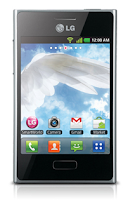
Restoring the default settings or factory reset your LG Optimus L3 will delete all your existing files. It is recommended to backup your important files on your computer before attempting to reset your device.
The steps below are the instructions on how to factory reset your LG Optimus L3:
Step 1. On your HomeLcd, tap on MENU icon.
Step 2. Select Settings, then select Privacy option.
Step 3. Then tap on Factory Data Reset.
Step 4. Read warning carefully before tapping the Reset phone.
Step 5. If you want to proceed in resetting your device, tap on Erase Everything to confirm the Factory Reset.
Now, you just need to wait while your device is resetting. It should reboot itself and you will have a new start on your LG Optimus L3.
If your LG Optimus L3 is unresponsive, then you may need to do the Hard Reset.
- Press and hold the Power button, Volume Down and the Home Key at the same time.
- Hold these buttons until you see the LG logo, then release the Power button.
- Hold the Volume Down and the Home Key until you see the Hard Reset Lcd.
- Wait for a few minutes while your phone performing the hard reset. It will turn on in a while..
Saturday, September 27, 2014
How to Make Your LG Optimus L5 a Wi Fi Hotspot
1. In the Application list, select Settings.
2. Then tap on More.
3. From the Wireless & Networks tab, tap Portable Wi-Fi hotspot.
4. Tap on Portable Wi-Fi hotspot.
3. From the Wireless & Networks tab, tap Portable Wi-Fi hotspot.
4. Tap on Portable Wi-Fi hotspot.
5. Then turn on the Portable Wi-Fi hotspot.
You can also choose the options that you want to adjust. After turning on and choosing your options, on another device, locate your device’s name and connect to your mobile network.
You can also choose the options that you want to adjust. After turning on and choosing your options, on another device, locate your device’s name and connect to your mobile network.
When your phone is sharing its data connection, an icon appears in the status bar and as an ongoing notification in the notifications drawer.
Friday, September 5, 2014
Comparison Sony Xperia P vs LG Optimus L9
Comparison: Sony Xperia P vs LG Optimus L9 - LG Optimus L9 and Sony Xperia P are the two premium dual core Android smartphone, which both have almost the same price tag. Which one would you choose?
LG Optimus L9 and Sony Xperia P both powered with a dual core processor. LG Optimus L9 use TI OMAP 4430 chipset with support for dual-core processor 1GHz Cortex A9 and PowerVR SGX540 GPU. While Sony Xperia P NovaThor U8500 chipset with support for dual-core processor 1GHz Cortex A9 and Mali-400MP GPU.
Both devices come equipped with 1GB of RAM. But for the capacity of the internal memory Sony Xperia P has a greater capacity the capacity of 16GB (which can be used by users 13GB), and without being equipped with a microSD slot. While the LG Optimus L9 has an internal memory capacity of 4GB plus microSD slot up to 32GB.
LG Optimus L9 comes with a size larger touch screen. LG Optimus L9 uses IPS LCD touch screen measuring 4.7 inches which has a resolution of 540 x 960 pixels (234ppi). While Sony Xperia P uses LED-backlit touch screen 4-inch LCD has a resolution of 540 x 960 pixels (275ppi).
Sony Xperia P is equipped with an 8 megapixel camera, while the LG Optimus L9 comes with a 5 megapixel camera. Both cameras have the ability to record 1080p HD video. Both are also equipped with a VGA front camera.
For connectivity features both equipped with features such as 3G network support HSDPA and HSUPA, Wi-Fi with Wi-Fi hotspot and DLNA, Bluetooth, and GPS. Sony Xperia P also equipped with NFC feature and USB On-the-go.
As for the power LG Optimus L9 comes with a battery capacity of 2150mAh, while the Sony Xperia P is equipped with a battery capacity of 1305mAh.
Sony Xperia P has a cheaper price tag with the tag of around Rp3, 3 million, and the smartphone offers a better camera, larger internal memory, NFC and USB OTG. While the LG Optimus L9 has a price tag of around Rp3, 4 million, which the smartphone offers a larger screen and a larger battery capacity.
LG Optimus L9
LG Optimus L9 present uses the Android OS 4.0 Ice Cream Sandwich with support for dual-core 1GHz processor and 1GB of RAM. LG Optimus L9 has a touch screen measuring 4.7 inches and comes with a 5 megapixel camera, VGA front camera, 4GB internal memory, and battery capacity of 2150mAh.
LG Optimus L9 smartphone that has a size of 131.9 x 68.2 x 9.1mm and weighs 125 grams is equipped with an application that is able to translate Qtranslator more than 44 different languages using Optical Character Recognition technology.
Sony Xperia P
Sony Xperia P comes with a 4-inch touch screen with qHD resolution (540 x 960) and using technology "White Magic" in order to remain visible under direct sunlight. Sony Xperia P is powered by dual core processor NovaThor 1GHz and 1GB of RAM.
Sony Xperia P is also equipped with an 8 megapixel camera with 1080p HD video recording capability, VGA front camera, 16GB of internal memory, and battery capacity of 1300mAh.
Wednesday, September 3, 2014
Specifications LG EA93 with 21 9 Aspect Ratio
Specifications LG EA93 with 21:9 Aspect Ratio - LG has recently introduced its latest monitor called Ultra Wide EA93, where the monitor is the first monitor in the world to have an aspect ratio of 21:9.
LG EA93 is using IPS panels to produce quality color as the real world. This monitor features a 4-Split Screen is capable of dividing the display screen into 4 Windows, this feature is designed to maximize productivity.

LG Ultra Wide Monitor has a 29-inch screen size with a resolution of 2560 x 1080 pixels. LG EA93 is also equipped with MHL connections to view content or play games that exist on your smartphone, and the monitor is also equipped with 7W stereo speakers.

Wednesday, August 27, 2014
LG Optimus Dual P698 Full Specification
LG Optimus Dual P698 Preview, Full Specification - LG Optimus Dual P698 is an Android smartphone with dual SIM GSM + GSM. LG Optimus Dual comes with a touch screen measuring 3.2 inches. LG Optimus Dual use the Android 2.3 Gingerbread with support for 800MHz processor and comes with a battery capacity of 1500mAh.
LG Optimus Dual P698: Full Specification :
| General | Network | Dual SIM 2G : GSM 850 / 900 / 1800 / 1900 - SIM 1 & SIM 2 3G : HSDPA 900 / 2100 - SIM 1 only |
|---|---|---|
| Announced | 2011, 4Q | |
| Processor | 800MHz processor | |
| SAR Rating | ||
| Color | Available | Black |
| Size | Dimensions (mm) | 114 x 59 x 12.1 |
| Weight (g) | 102 | |
| Display | Type | TFT capacitive touchscreen, 256K colors |
| Size | 320 x 480 pixels, 3.2 inches (~180 ppi pixel density) | |
| Lines | 0 | |
| Menu | Touchscreen | |
| Design | Type | Blok |
| Antenna | Fixed Internal | |
| Keys | Navigation | Touchscreen |
| QWERTY | No | |
| Soft | ||
| Other | ||
| Lighting | ||
| Memory | Phonebook | Practically unlimited entries and fields |
| Internal (MB) | 150 MB storage | |
| Expansion | microSD, up to 32GB | |
| Battery | Type | Standard battery, Li-Ion 1500 mAh |
| Stand-by (hrs) | Up to 330 Hours | |
| TalkTime(min) | Up to 300 minutes | |
| Ringtones | Polyphonic | |
| Customization | Yes | |
| Audio | Format | MP3/WAV/eAAC+ |
| MP3 Player | Yes | |
| Voice | ||
| FM Radio | Yes | |
| A2DP | Yes | |
| Video | Format | MP4/3GP |
| Recorder | Yes | |
| TV | Null | |
| Entertainment | Games | Yes, Downloadable |
| Messaging | SMS | Yes |
| Total SMS | ||
| MMS | Yes | |
| EMS | Yes | |
| Yes, Email, Push Email | ||
| IM | ||
| Push-To-Talk | ||
| Connectivity | HSDPA | Yes, HSDPA |
| EDGE | Yes | |
| Bluetooth | Yes, v3.0 | |
| 3G | Yes | |
| GPRS | Yes | |
| Infrared (IrDA) | No | |
| USB Port | Yes | |
| WIFI/WLAN | Yes, Wi-Fi 802.11 b/g/n, Wi-Fi hotspot, DLNA | |
| Data Cable | ||
| Data Modem | ||
| GPS | Yes | |
| Software | Java (J2ME) | Yes |
| WAP | No Info | |
| Platform OS | Android OS - 2.3 Gingerbread | |
| Browser | xHTML, HTML, Android Browser | |
| Predictive Text Entry | ||
| Speech Codes | ||
| PIM Application | ||
| Others Application | Google Apps, SNS integration | |
| Personal | Themes | Yes |
| Caller ID | Yes | |
| Profile ID | Yes | |
| Camera | Lens Type | CMOS, 3,2 Megapixel |
| Digital zoom | ||
| Max. Resolution | 2048x1536 pixels | |
| Flash | No | |
| Night Mode | No | |
| Multi Shot | ||
| Frame | Types | |
| Extra Features | Geo Tagging | |
| Photo Format | JPG | |
| Front Camera |  |
Subscribe to:
Posts (Atom)