Showing posts with label note. Show all posts
Showing posts with label note. Show all posts
Monday, November 3, 2014
Upcoming Samsung Galaxy Note 4 leaks from the very wild!

So, we finally get a glimpse of the impending Samsung phablet flagship smartphone and the companys next generation Galaxy Note handset, that will be reportedly dubbed as the new Samsung Galaxy Note 4. In the past article on the South Korean multinational manufacturer, Samsung seems to have been teasing their International Franchise Association Press Conference invitation with a theme of the firms looming Galaxy Note smartphone.
Accordingly, today courtesy of GSMArena and one of their dedicated reader of the website, we get see the upcoming Samsung Galaxy Note 4 in some clear looking large photographs. First of all, we do take a look at the front of the phone, that is very similar to the current generation Galaxy Note 3 smartphone, featuring the touchscreen glass panel, couple of capacitive buttons under the sheet of glassware, again with the traditional physical home button of Samsung style. And when we do look at the back of the yet to go official smartphone, we can see that, Samsung hasnt played much with the material around the rear side, attributing almost identical plastic battery door with the faux leather pattern running over it, but without the stitching motif on the sides like its predecessor. The design this time is much alike their another impending phone, Galaxy Alpha from the leaks.
The side frame of the phone also looks to duplicate the rumored metal construction from the Galaxy Alpha device, where it is believed that some sort of metal (mostly aluminium) will be implemented and should replace the plastic build for forthcoming Samsung devices and this phone here is one from that kind of fleet. Apart from the material used in building the next Galaxy Note smartphone, we can also sight the holster, thats holding the S Pen, an USB 3.0 port and holes for speaker on the bottom side of the device. Towards the top, theres a more square shaped room for the camera lens kept aside the LED flash and heart rate sensor, which is placed parallel to the phones primary shooter and the Samsung branding to the middle portion of the unit, as usual.
Alongside the snaps of the phone, the source also shows us how Samsung is preparing the new packaging box for their approaching smartphone, Galaxy Note 4. The box has also got the name, "Samsung Galaxy Note 4" imprinted on the front with the picture of the phone, staging a new color shaded wallpaper and dates like Tuesday 15, September, lamentably which is not again a Tuesday but a Monday. What should we take from that mistake? You tell us in the comments below.
Lastly, to keep you reckon folks, Samsungs new Galaxy Note 4 will come with Quad-Core Qualcomm Snapdragon 805 processor, speeding at 2.5GHz and also in Octa-Core Exynos 5433 chipset (depending upon the markets), Adreno 420 Graphics Processing Unit or ARM Mali-T760, (again variable at arrivals), 5.5-inches or 5.7-inches Quad High Definition screen of 2560 x 1440 or 2K resolution display, 32 gigabytes of internal mass storage (expandable via microSD card slot), three gigabytes of Random Access Memory (RAM), 16 megapixels main snapper on the back with ISOCELL lens technology and dual-LED flash lights, capable of 4K UHD video recording feature and siting a 3.69 megapixels front facer, along with Bluetooth 4.0, Near Filed Communication (NFC) and 4G LTE network connections support, a 4,000mAH powered battery and runs Androids version 4.4.4 KitKat with Samsungs own TouchWiz User Interface on top.
Source: GSMArena

Thursday, October 2, 2014
Samsung Galaxy Note 8 0 Tips and Tricks
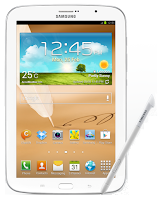
Here are some How Tos for your Samsung Galaxy Note 8.0. These How Tos may still not yet complete and I am still working on the others:
How to Factory Reset Samsung Samsung Galaxy Note 8.0
Restoring the default settings or factory reset your Samsung Galaxy Note 8.0 will delete all your existing files. It is recommended to backup your important files on your computer before attempting to reset your device.
The steps below are the instructions on how to factory reset your Samsung Galaxy Note 8.0:
Step 1. On your HomeLcd, tap on MENU icon.
Step 2. Select "Settings", then scroll down and tap "Backup and reset" option.
Step 3. Then tap on “Factory Data Reset”.
Step 4. Read warning carefully before tapping the “Reset Device”.
Step 5. If you want to proceed in resetting your device, tap on “Delete All” to confirm the Reset.
Now, you just need to wait while your device is resetting. It should reboot itself and you will have a new start on your Samsung Galaxy Note 8.0.
You may also use the shortcut method using the code: Enter *2767*3855# on your device.
How to Reduce the Battery Consumption on Samsung Galaxy Note 8.0
Battery Life depends on how you use your device. For Samsung Galaxy Note 8.0 device, if you want to save your battery to last longer hours, you may need to adjust your settings.
All of us want to have a longer battery life on our phones. Follow these suggestions to reduce the battery consumption:
- Switch to Sleep mode by pressing the Power key when you are not using your device.
- Close any apps or features when you are done using it so they will not continuously running in the background.
- Turn off the network connection if you are out of range so that your device will stop searching for a network signal. (deactivate the Bluetooth feature, turn off the Wi-Fi feature when not in use, etc).
- Deactivate auto-syncing of applications.
- Decrease the backlight time.
- Lessen the Lcd brightness and the Lcd lock timeout.
Extend battery life when the Pen is attached:
- From your Home Lcd, tap on Apps icon.
- Select Settings, then go to S Pen.
- Then tap on Battery saving.
How to Reformat Memory Card on Samsung Galaxy Note 8.0
Formatting the memory card on your Samsung Galaxy Note 8.0 will delete all the files that is stored on the memory card. It is recommended to backup your important files on your computer before attempting to format your memory card.
You may not be able to reformat your memory card on your computer. So try it through your device:
1. On your Home Lcd, tap Apps.
2. Select Settings.
3. Go to Storage.
4. Then tap Format SD card.
5. Just follow the on-Lcd instruction on how to confirm the format.
How to Secure Your Samsung Galaxy Note 8.0 (Face Unlock, Face and Voice Unlock, Pattern and Password)
Securing your Samsung Galaxy Note 8.0 is also important, specially if you have a private files that you dont want others to access it. So to prevent others from using your or accessing your personal data without your permission, then you may need to activate the security features. The device requires an unlock code whenever unlocking it.
Setting a face unlock:
1. On the Applications Lcd, tap Settings.
2. Select Lock Lcd.
3. Then choose Screen lock.
4. Tap Face unlock.
Fit your face in the frame to be captured. Then, set a backup unlock PIN or pattern to unlock the Lcd in case the face unlock fails.
Setting a face and voice unlock:
1. On the Applications Lcd, tap Settings.
2. Select Lock Lcd.
3. Then choose Screen lock.
4. Tap Face and voice.
Fit your face in the frame to be captured and then set a voice command. Then, set a backup unlock PIN or pattern to unlock the Lcd in case the face and voice unlock fails.
Setting a pattern:
1. On the Applications Lcd, tap Settings.
2. Select Lock Lcd.
3. Then choose Screen lock.
4. Tap Pattern.
Draw a pattern by connecting four dots or more, and then draw the pattern again to verify it. Set a backup unlock PIN to unlock the Lcd when you forget the pattern.
Setting a PIN:
1. On the Applications Lcd, tap Settings.
2. Select Lock Lcd.
3. Then choose Screen lock.
4. Tap PIN.
Enter at least four numbers, and then enter the password again to verify it.
Setting a password:
1. On the Applications Lcd, tap Settings.
2. Select Lock Lcd.
3. Then choose Screen lock.
4. Tap Password.
Enter at least four characters including numbers and symbols, and then enter the password again to verify it.
Setting a face unlock:
1. On the Applications Lcd, tap Settings.
2. Select Lock Lcd.
3. Then choose Screen lock.
4. Tap Face unlock.
Fit your face in the frame to be captured. Then, set a backup unlock PIN or pattern to unlock the Lcd in case the face unlock fails.
Setting a face and voice unlock:
1. On the Applications Lcd, tap Settings.
2. Select Lock Lcd.
3. Then choose Screen lock.
4. Tap Face and voice.
Fit your face in the frame to be captured and then set a voice command. Then, set a backup unlock PIN or pattern to unlock the Lcd in case the face and voice unlock fails.
Setting a pattern:
1. On the Applications Lcd, tap Settings.
2. Select Lock Lcd.
3. Then choose Screen lock.
4. Tap Pattern.
Draw a pattern by connecting four dots or more, and then draw the pattern again to verify it. Set a backup unlock PIN to unlock the Lcd when you forget the pattern.
Setting a PIN:
1. On the Applications Lcd, tap Settings.
2. Select Lock Lcd.
3. Then choose Screen lock.
4. Tap PIN.
Enter at least four numbers, and then enter the password again to verify it.
Setting a password:
1. On the Applications Lcd, tap Settings.
2. Select Lock Lcd.
3. Then choose Screen lock.
4. Tap Password.
Enter at least four characters including numbers and symbols, and then enter the password again to verify it.
P.S. To learn how to earn Minimum of $4,485 per Week, CLICK HERE and Watch the Video.
Sunday, September 21, 2014
Manual Update Galaxy Note 8 0 N5100 with XXBMF1 Jelly Bean 4 1 2 Firmware
Galaxy Note 8.0 N5100 can now be updated with the Official Android 4.1.2 XXBMF1 Jelly Bean Firmware which comes with the added stability and bug fixes. Just in case if you still haven’t got the update of this firmware, you can now manually update the same. The best part of this update is that this is the Official firmware and not the beta or custom ROM firmware. Before we proceed to check on what are the instructions to apply with this firmware, you will need to follow the list of pre requisites which we have mentioned below.

Note: Applying with this firmware won’t root / void the warranty in any manner.
Quick Pre Requisites:
- Create a backup of all your data with the help of below mentioned steps. Though, you can back up the data with KIES as well, we recommend you to backup manually with the help of below mentioned steps as sometimes KIES refuses to detect the device.
SMS – Use “SMS Backup & Restore app”,
Contacts – Sync with the Gmail application,
Call Log - Call Log and Restore
Images, Songs, Videos, Files – Copy to internal / External SD Card,
APN and MMS Settings – Note down from the path “Applications > Settings > Wireless and Network > Mobile Networks > Access Point Names”
- From the path “Settings > Development Options > USB debugging” enable the USB Debugging Mode. Minimum charge left in your phone is 30% or else there is a risk of device getting turned off in the middle of rooting process.
Disclaimer: Follow all the instructions mentioned in this article as if there is any damage caused due to not following instructions then we shall not be held liable or responsible. Just in case if you face any issues then we will try our level best to address the same.
Assuming that you are done with all the above mentioned steps, you can now proceed to the next step where we have mentioned the detailed guide on how to apply with this firmware update.
Procedure to Update Galaxy Note 8.0 N5100 with Jellybean 4.1.2 Firmware:
- Download the Jellybean 4.1.2 Firmware Package and Odin from here to your computer. Once downloaded, extract both the files in your computer and open Odin in your computer.
- Open Odin in your computer. Download Mode in Galaxy Note 8.0 can be entered by first turning Off the device and then hold Volume Down Rocker Key + Menu Button and then Power ON the device. Once the device is booted and you see the Download Mode Green Robot, you can release the button combos.
- Connect your device to the computer with the help of original USB cable and then you will see that the ID : COM section will turn Yellow / Green, indicating that all the drivers are installed successfully.
- Click on “PDA” to select the tar file which you got from the firmware package which is the TAR File which you got after extracting the file from the first step.
- Once all the file is selected, click on “Start” to start the process of firmware update. Once the firmware update process is completed which will be mentioned in the ODIN, the Galaxy S2 device will be rebooted.
- For firmware update to be finished, it will take around 2-3 minutes for applying the update. Once the device is updated successfully, the device will be rebooted. As soon as you see the Language preferences or the Home Screen, you need to disconnect the device from computer and enjoy using your phone.
Note: If the device gets into the boot loop sequence or say gets stuck in the welcome Lcd, just re insert the battery and re follow the above instructions so as to again follow the above mentioned instructions.
Do let us know in the comments section just in case if you face any issues in the process of firmware update in the comments section as we will try our level best to sort out the same.
Tuesday, September 9, 2014
Apple iPhone 5 and Samsung Galaxy Note 2 Compare
Apple iPhone 5 and Samsung Galaxy Note 2 (Compare) - The two technology giants, Apple and Samsung have launched a new masterpiece. At this time, we will compare the Apple iPhone 5 and Samsung Galaxy Note 2.
On the exterior, the Apple iPhone 5 uses aluminum and glass materials unybody, to remove the glass that lines the back cover iPhone before. While the Samsung Galaxy Note 2 uses the same plastic material as the Galaxy S III. Apple iPhone 5 has a body that is thinner and smaller, and has a lighter weight than the Galaxy Note 2. Apple iPhone 5 has a size of 123.8 x 58.6 x 7.6 and weighs 112 grams, while the Samsung Galaxy Note 2 has a size of 151.1 x 80.5 x 9.4 and weighs 180 grams.
For the Lcd size, the Samsung Galaxy Note 2 has a touch Lcd with a size larger than the Apple iPhone 5. Galaxy Note 2 uses a Super AMOLED HD Lcd measuring 5.5 inches with a resolution of 720 x 1280 pixels. While the Apple iPhone 5 using a 4-inch touch Lcd with a resolution of 640 x 1136 pixels.
Samsung Galaxy Note 2 powered by Exynos chipset with support for quad-core 1.6GHz processor and Mali-400 GPU. While the Apple iPhone 5 to use Apple A6 chipset, there is no information about the speed of the processor used this device, but Apple claims the iPhone 5 has a CPU and GPU performance two times better than the previous iPhone.
For the operating system, the Apple iPhone 5 iOS 6.0 using the latest OS, while Samsung Galaxy Note 2 using OS Android 4.1 Jelly Bean.
Apple iPhone 5 and Samsung Galaxy Note 2 both come with 8 megapixel main camera with LED flash. Both have the ability to record 1080p HD video at 30fps. Both come equipped with a front camera for video call.
Apple iPhone 5 and Samsung Galaxy Note 2 both offer a choice of internal memory capacity of 16/32/64GB. Samsung Galaxy Note 2 is also equipped with a microSD slot up to 64GB. For connectivity features, both equipped with standard connectivity features and support for 4G LTE networks. And Galaxy Note 2 is also equipped with NFC.
On the exterior, the Apple iPhone 5 uses aluminum and glass materials unybody, to remove the glass that lines the back cover iPhone before. While the Samsung Galaxy Note 2 uses the same plastic material as the Galaxy S III. Apple iPhone 5 has a body that is thinner and smaller, and has a lighter weight than the Galaxy Note 2. Apple iPhone 5 has a size of 123.8 x 58.6 x 7.6 and weighs 112 grams, while the Samsung Galaxy Note 2 has a size of 151.1 x 80.5 x 9.4 and weighs 180 grams.
For the Lcd size, the Samsung Galaxy Note 2 has a touch Lcd with a size larger than the Apple iPhone 5. Galaxy Note 2 uses a Super AMOLED HD Lcd measuring 5.5 inches with a resolution of 720 x 1280 pixels. While the Apple iPhone 5 using a 4-inch touch Lcd with a resolution of 640 x 1136 pixels.
Samsung Galaxy Note 2 powered by Exynos chipset with support for quad-core 1.6GHz processor and Mali-400 GPU. While the Apple iPhone 5 to use Apple A6 chipset, there is no information about the speed of the processor used this device, but Apple claims the iPhone 5 has a CPU and GPU performance two times better than the previous iPhone.
For the operating system, the Apple iPhone 5 iOS 6.0 using the latest OS, while Samsung Galaxy Note 2 using OS Android 4.1 Jelly Bean.
Apple iPhone 5 and Samsung Galaxy Note 2 both come with 8 megapixel main camera with LED flash. Both have the ability to record 1080p HD video at 30fps. Both come equipped with a front camera for video call.
Apple iPhone 5 and Samsung Galaxy Note 2 both offer a choice of internal memory capacity of 16/32/64GB. Samsung Galaxy Note 2 is also equipped with a microSD slot up to 64GB. For connectivity features, both equipped with standard connectivity features and support for 4G LTE networks. And Galaxy Note 2 is also equipped with NFC.
At first glance, the Samsung Galaxy Note 2 suits you really want a smartphone with a large Lcd. While the iPhone 5 is suitable for your multimedia and gaming enthusiasts.
Apple iPhone 5
Apple iPhone 5 comes with a touch Lcd size larger than its predecessor. Apple iPhone uses a touch Lcd Retina 4-inch with a resolution of 1136 x 640 pixels (326ppi).
Apple iPhone 5 memmiliki an ultra slim body with a thickness of only 7.6mm. iPhone 5 is powered by Apples new A6 chipset that offers performance and GPU processor twice as fast.
Apple iPhone 5 is equipped with an 8 megapixel camera with several new capabilities such as, take pictures faster performance, better low light, panorama mode, and the ability to take pictures while recording video (1080 at 30fps). iPhone 5 is also equipped with a front camera, which is now able to record 720p HD video.
Apple iPhone 5 is also equipped with super-fast connectivity features like 4G LTE 100Mbps and dual band Wi-Fi, and a smartphone has 8-pin connecter smaller connector ligtning called by name.
Apple iPhone 5 memmiliki an ultra slim body with a thickness of only 7.6mm. iPhone 5 is powered by Apples new A6 chipset that offers performance and GPU processor twice as fast.
Apple iPhone 5 is equipped with an 8 megapixel camera with several new capabilities such as, take pictures faster performance, better low light, panorama mode, and the ability to take pictures while recording video (1080 at 30fps). iPhone 5 is also equipped with a front camera, which is now able to record 720p HD video.
Apple iPhone 5 is also equipped with super-fast connectivity features like 4G LTE 100Mbps and dual band Wi-Fi, and a smartphone has 8-pin connecter smaller connector ligtning called by name.
Samsung Galaxy Note 2
Samsung Galaxy Note 2 comes with 8 megapixel camera and 1.9 megapixel front behind, and has a battery with a capacity of 3100mAh. Samsung Galaxy Note 2 thinner than its predecessor, with only 9.4mm thick and weighs 180 grams.
Samsung Galaxy Note 2 using OS Android 4.1 Jelly Bean is also equipped with S-Pen that comes with new features. Samsung Galaxy Note II is available in three internal memory options of 16GB, 32GB, and 64GB plus a microSD slot support.
Subscribe to:
Posts (Atom)