Showing posts with label Factory. Show all posts
Showing posts with label Factory. Show all posts
Friday, October 10, 2014
How to Factory Reset Sony Xperia Z2 Tablet
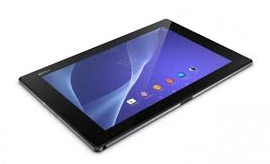 We have our own reasons why we factory reset our device. Maybe we want to delete all the files and restore the device to its original state. It could also be the device may be malfunctioning or so slow and it needs to be reset.
Restoring the default settings or factory reset your Sony Xperia Z2 tablet will delete all your files. It is recommended to backup your important files on your computer before attempting to reset your device.
There are two ways on how to reset your Sony Xperia Z2 tablet. One is to erase everything, wiping your files and restoring the default settings. The other one is to reset the device without deleting your personal data.
How To Reset Your Sony Xperia Z2 (Erasing All Your Files):
- On your Home Lcd, tap Apps icon.
- Go to Settings, and select Backup & reset.
- Tap on Factory data reset.
- Then Reset tablet.
- Confirm by tapping Erase everything. You just need to wait while your phone deleting your files and restoring your settings to default.
How To Reset Without Erasing Your Personal Data:
- On your Home Lcd, tap Apps icon.
- Go to Settings, and select Backup & reset.
- Tap on Settings reset.
- Then Reset tablet.
- Confirm by tapping Reset settings.
- Wait while your phone restoring your settings.
Warning: To avoid permanent damage to your device, do not restart your device while a reset procedure is underway.

Thursday, October 2, 2014
How to Factory Reset Hard Reset Samsung Galaxy Express
The steps below are the instructions on how to factory reset your Samsung Galaxy Express:
Step 1. On your HomeLcd, tap on MENU icon.
Step 2. Select "Settings", then scroll down and tap "Backup and reset" option.
Step 3. Then tap on “Factory Data Reset”.
Step 4. Read warning carefully before tapping the “Reset Device”.
Step 5. If you want to proceed in resetting your device, tap on “Delete All” to confirm the Reset.
Now, you just need to wait while your device is resetting. It should reboot itself and you will have a new start on your Samsung Galaxy Express.
Now, you just need to wait while your device is resetting. It should reboot itself and you will have a new start on your Samsung Galaxy Express.
You may also use the shortcut method using the code: Enter *2767*3855# on your device.
Hard Reset:
- Press and hold the Power button, Volume Up and the Home Key at the same time.
- Hold these buttons until your phone vibrates, then release the Power button.
- Hold the Volume Up and the Home Key until you see the Android icon.
- Then choose the Factory Reset option.
Wednesday, October 1, 2014
How to Factory Reset Hard Reset Samsung Galaxy Young
Restoring the default settings or factory reset your Samsung Galaxy Young will delete all your existing files. It is recommended to backup your important files on your computer before attempting to reset your device.
The steps below are the instructions on how to factory reset your Samsung Galaxy Young:
Step 1. On your HomeLcd, tap on MENU icon.
Step 2. Select "Settings", then scroll down and tap "Backup and reset" option.
Step 3. Then tap on “Factory Data Reset”.
Step 4. Read warning carefully before tapping the “Reset Device”.
Step 5. If you want to proceed in resetting your device, tap on “Erase everything” to confirm the Reset.
Now, you just need to wait while your device is resetting. It should reboot itself and you will have a new start on your Samsung Galaxy S3.
You may also use the shortcut method using the code: Enter *2767*3855# on your device.
Hard Reset:
1. Turn off your device.
2. Then press and hold Volume Down + Home Button + Power On.
3. Wait for a few seconds until the Factory reset menu appears.
4. Select "wipe data/factory reset" by using the Volume Down button.
Tuesday, September 30, 2014
How to Factory Reset Hard Reset LG Optimus L3
Restoring the default settings or factory reset your LG Optimus L3 will delete all your existing files. It is recommended to backup your important files on your computer before attempting to reset your device.
The steps below are the instructions on how to factory reset your LG Optimus L3:
Step 1. On your HomeLcd, tap on MENU icon.
Step 2. Select Settings, then select Privacy option.
Step 3. Then tap on Factory Data Reset.
Step 4. Read warning carefully before tapping the Reset phone.
Step 5. If you want to proceed in resetting your device, tap on Erase Everything to confirm the Factory Reset.
Now, you just need to wait while your device is resetting. It should reboot itself and you will have a new start on your LG Optimus L3.
If your LG Optimus L3 is unresponsive, then you may need to do the Hard Reset.
- Press and hold the Power button, Volume Down and the Home Key at the same time.
- Hold these buttons until you see the LG logo, then release the Power button.
- Hold the Volume Down and the Home Key until you see the Hard Reset Lcd.
- Wait for a few minutes while your phone performing the hard reset. It will turn on in a while..
How to Factory Reset Sony Xperia E
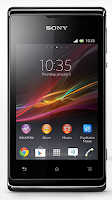
Follow these steps on how to reset the Sony Xperia E:
- From your Home Lcd, tap the Menu icon.
- Tap Settings, then select Backup & Reset.
- Tap Factory data reset.
- Tap Reset phone.
- Then you need to confirm by tapping Erase everything.
Friday, September 26, 2014
How to Factory Reset Hard Reset HTC Desire U
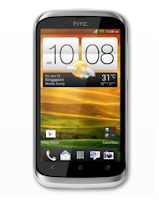
Resetting HTC Desire U on Settings:
- Slide the Notifications panel open, and then tap the Gear Icon or Settings.
- Select Backup & reset.
- Tap Reset phone.
- If you want to delete all your files, then tap Erase all data.
- Then tap OK to confirm.
These steps is also helpful when your HTC Desire U is unresponsive or frozen and theres no way to access the settings.
- First, press and hold the Volume Down button, and then do the same way on the Power button.
- Hold the two buttons until the three Android images appear on the Lcd.
- Release the button when the three Android images appear and press Volume Down.
- Tap on Factory Reset, and then press the Power Button to confirm.
Subscribe to:
Posts (Atom)