Showing posts with label E. Show all posts
Showing posts with label E. Show all posts
Saturday, November 15, 2014
Xtouch announces XWatch 04 featuring flexible e ink display

Xtouch multinational manufacturer from the Chinese shores partnered with Tecsync Technology have got a new extraordinary smartwatch added to their list of wearables. The new XWatch 04 is all powered with flexible EPD (Electronic Paper Display) on your wrist, screening out time, date and other notifications from the connected device.
.png)
It is said, that the new Xtouch XWatch 04 has got a flexible 1.8-inches e-ink display on board, that fits well curved on to your wrist, which is very light in weight, saving up to 60% of energy, when compared to what an LCD screen can provide you with. The XWatch 04 is also much more readable, durable and reliable, with the companys multi-year investments on sealant methods, moisture protection, UV Block and mechanical protection.
As far as its design and industrial materials are concerned, the new watch from the Chinese firm made with stainless steel, and the straps are of silicongum. The XWatch 04 is packing a 2,100mAh battery, giving users a standby time of one whole year (you hardly need to charge these). The units dimensions are scaled at 48.7 x 37 x 9.65 millimeters and weighs 63 grams on mass.
Currently online retailer Souq.com will ship the devices in Black color option across United Arab Emirates, at a price of 389 AED, about 106 United States Dollars.
Source: XTOUCH, SOUQ.COM

Friday, October 3, 2014
How to Start a Conference Call on Sony Xperia E

1. If youre on an ongoing call, tap .
.
2. Then dial the number of the second participant and tap .
.
3. When the second participant answers the call, the first call is put on hold.
4. Tap on to start the conference call. Repeat the same steps to add more participants to the conference call.
To have a private conversation with one of the participants
1. Tap the button showing the number of participants during the ongoing conference call.
2. Then tap on the name of the participant you wish to talk privately.
3. To end the conversation and return to the conference call, tap
To release a participant during the ongoing conference call
1. Tap the button showing the number of participants during the ongoing conference call.
2. Then tap next to the participant you want to release from the call.
To end the conference call
1. During the conference call, just tap.
.2. Then dial the number of the second participant and tap
.3. When the second participant answers the call, the first call is put on hold.
4. Tap on
to start the conference call. Repeat the same steps to add more participants to the conference call.To have a private conversation with one of the participants
1. Tap the button showing the number of participants during the ongoing conference call.
2. Then tap on the name of the participant you wish to talk privately.
3. To end the conversation and return to the conference call, tap
To release a participant during the ongoing conference call
1. Tap the button showing the number of participants during the ongoing conference call.
next to the participant you want to release from the call.To end the conference call
1. During the conference call, just tap
.Tuesday, September 30, 2014
How to Factory Reset Sony Xperia E
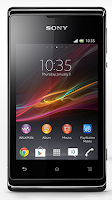
Follow these steps on how to reset the Sony Xperia E:
- From your Home Lcd, tap the Menu icon.
- Tap Settings, then select Backup & Reset.
- Tap Factory data reset.
- Tap Reset phone.
- Then you need to confirm by tapping Erase everything.
Subscribe to:
Posts (Atom)